
Use the live activity feed
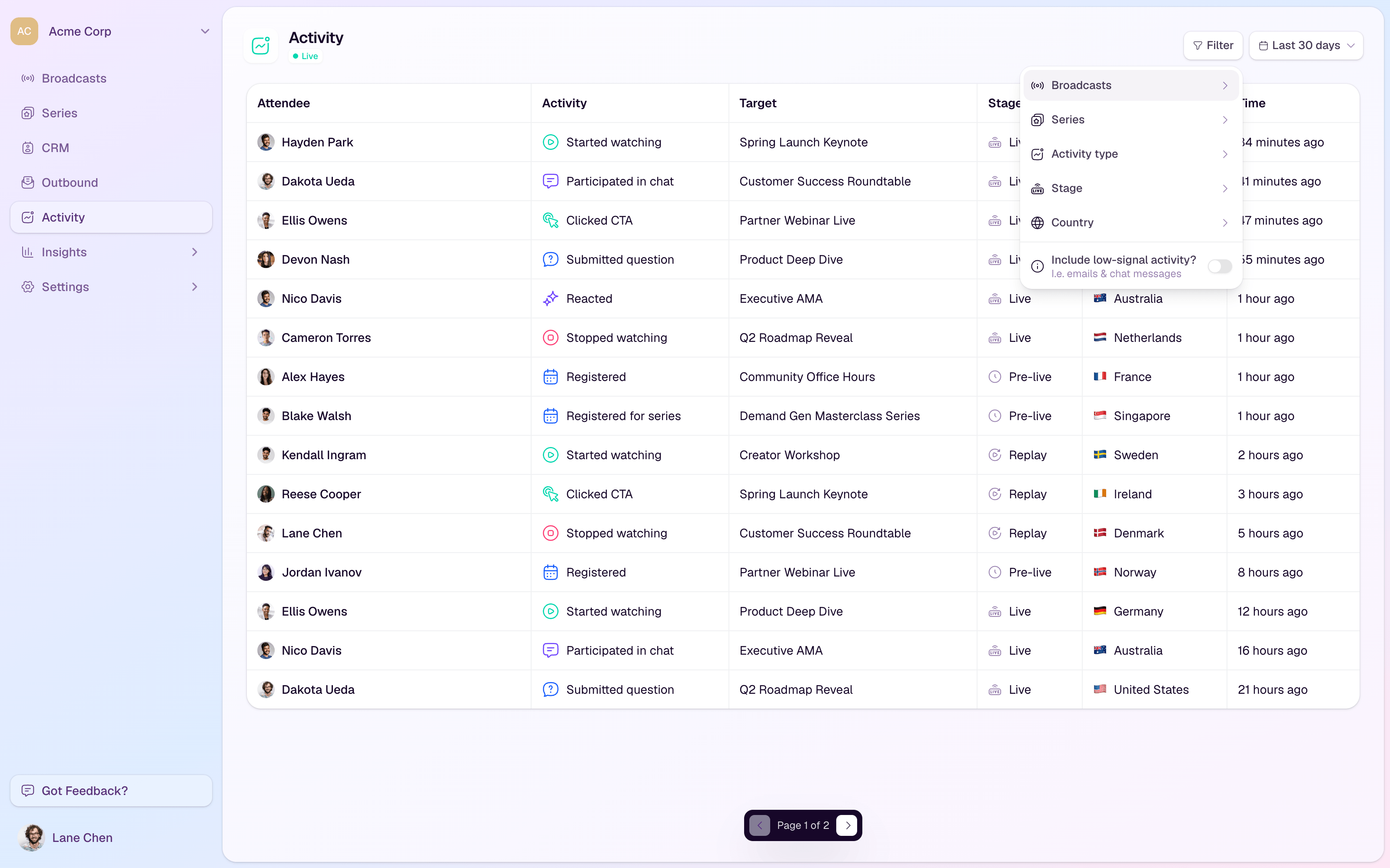
The Activity page gives you a live, workspace-wide feed of the actions people are taking across your broadcasts, series, emails, and calls to action.
Open the feed
Go to Activity from the workspace sidebar.
Check the status badge beside the page title. Live means new activity is connected; Reconnecting means HeyStream is restoring the live connection.
Use the date range selector to choose the period you want to review.
Read the table
Attendee shows the person connected to the activity. Select an attendee to open their contact profile.
Activity shows what happened, such as Registered, Started watching, Clicked CTA, Submitted question, or Email opened.
Broadcast / series shows the event, series, or email connected to the activity.
Stage shows whether the activity happened pre-live, live, on replay, or through email.
Country and Time help you understand where and when the activity happened.
Filter activity
Filter by broadcast or series when you only want activity for one event or campaign.
Filter by activity type to focus on registrations, viewing, questions, chat, CTA actions, or email events.
Filter by stage to separate pre-live, live, replay, and email activity.
Filter by country when you want to review regional engagement.
Include low-signal activity when you need to see lower-priority events such as some email and chat events.
When to use it
During a live broadcast, monitor registrations, viewing starts, chat, questions, and CTA clicks as they happen.
After a broadcast, review replay activity and identify contacts worth following up with.
When investigating a single attendee, select their row to open the contact profile and see their broader history.