
Add descriptions, thumbnails, and registration settings
Descriptions, thumbnails, and registration settings shape what attendees see before they join your broadcast. Use them to explain the session clearly, set expectations, and collect the information your team needs.
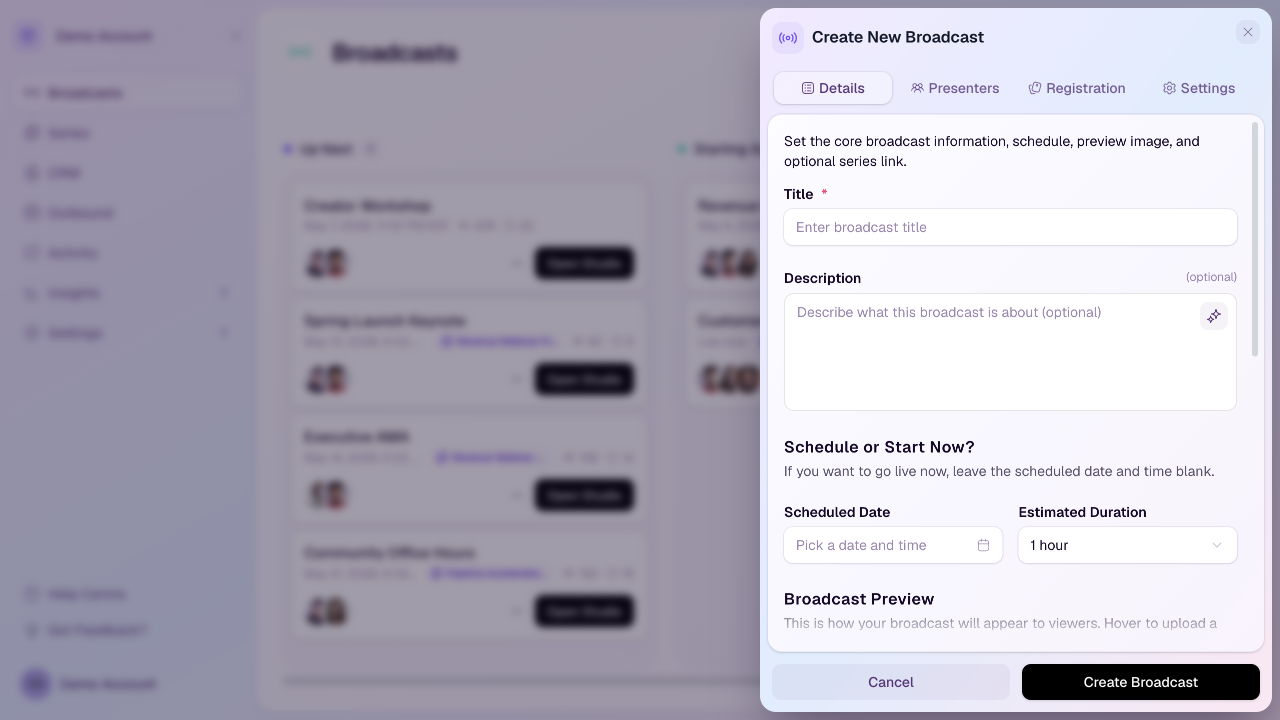
Add or edit the broadcast description
Open the broadcast create or edit form.
Go to the Details tab.
Use Description to explain what attendees will learn, who should attend, and any preparation they need.
Save the broadcast.
Add a thumbnail or use the generated preview
HeyStream can generate dynamic broadcast previews that include metadata such as countdown timing. If you prefer a custom thumbnail, upload a 1280 x 720 pixel image in a 16:9 ratio from the Broadcast Preview area.
Open registration settings
Open the broadcast create or edit form.
Select the Registration tab.
Review the available registration controls.
Registration controls
Allow Public Registration: When enabled, anyone with the registration link can sign up. Turn this off if registration should be closed.
Allow Replay Registration After Broadcast Ends: When enabled, people can still register after the live session to access the replay.
Email me when someone submits a question: Sends a notification when an attendee submits a question before the broadcast.
Custom confirmation URL: Optionally send attendees to your own thank-you page, offer, survey, or tracking destination after they register on the hosted registration page. Use an http or https URL. If this is blank, HeyStream shows the normal confirmation view with add-to-calendar links.
Custom registration questions
Email and name are always required. You can add extra questions for the details your team needs, such as company size, role, goals, or consent fields. Questions can be reused from the question library or created for a specific broadcast.
Series-linked broadcasts
If the broadcast is linked to a series, registration questions are managed at the series level. This keeps the signup experience consistent for everyone who subscribes to the series.
Before publishing the link
Preview the registration page after saving. Check the description, thumbnail, registration status, replay registration setting, custom confirmation URL, and custom questions before sending the link to attendees. If you use a custom confirmation URL, make sure the destination page is live and tells attendees what to do next.