
HeyStream basics
HeyStream helps teams run polished live broadcasts and turn audience attention into measurable next steps. This guide explains the core parts of HeyStream so you know where everything fits before you create your first broadcast.
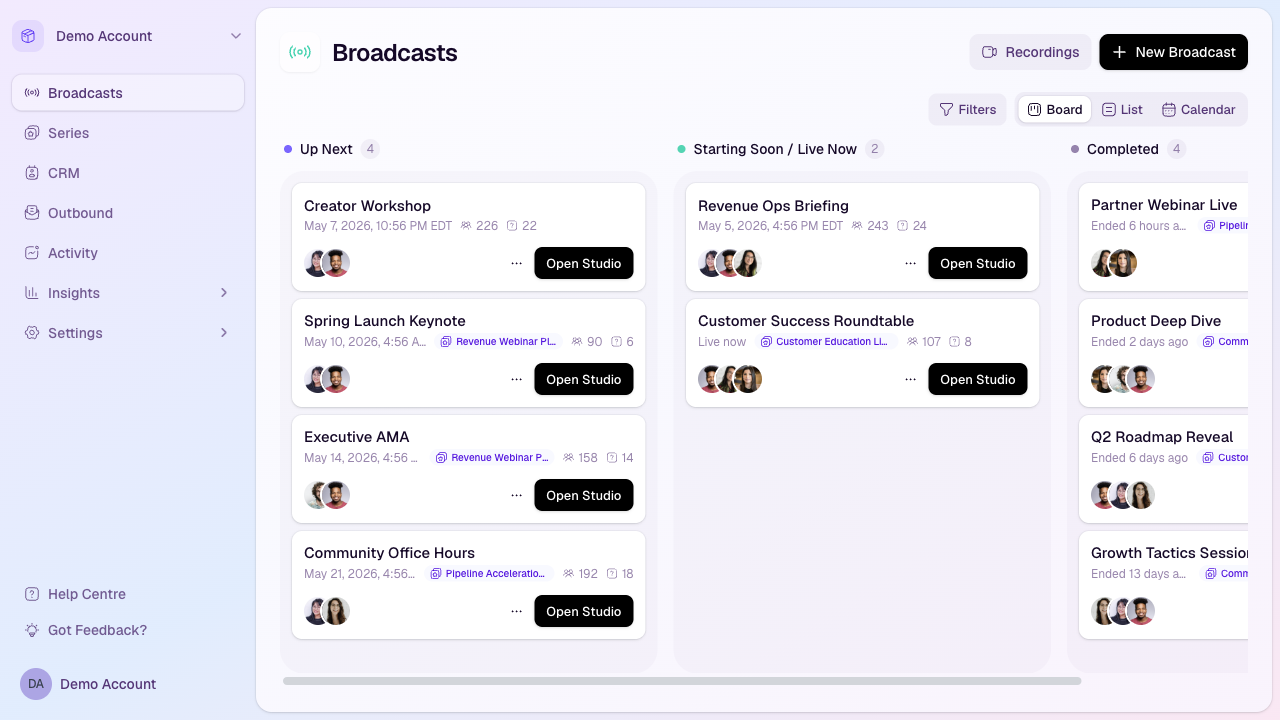
How HeyStream is organised
Most work in HeyStream happens inside a workspace. A workspace usually represents one brand, team, business unit, or live programme.
Workspace: The home for your broadcasts, series, contacts, settings, integrations, recordings, and insights.
Broadcast: A single live or replayable event, such as a webinar, product demo, launch, customer session, or workshop.
Series: A recurring set of broadcasts with shared registration, useful for regular demos, weekly sessions, or ongoing programmes.
Audience CRM: The place where HeyStream stores contacts, registrations, attendance, replay views, CTA clicks, and follow-up context.
The main parts of a broadcast
A broadcast brings together the setup your team controls, the pages attendees use, and the engagement data HeyStream captures.
Broadcast details: The title, description, date, time zone, thumbnail, duration, and optional series link.
Registration page: A hosted signup page where attendees register and answer any custom questions you add.
Watch page: The branded page where attendees watch live or return later for the replay.
Studio: The presenter workspace where hosts join, manage speakers, share content, control layouts, show CTAs, and go live.
Replay: The post-event viewing experience created from the recording so people can watch after the live session ends.
What your team can do during a broadcast
HeyStream is designed for live sessions that do more than collect viewers. During a broadcast, your team can:
Invite and manage presenters.
Share slides, demos, screens, and other media.
Use chat, Q&A, polls, and reactions to involve the audience.
Show calls to action during the live session or replay.
Bring selected attendees on air when a live question or customer moment belongs in the session.
Track audience activity while the event is happening.
What HeyStream tracks for you
HeyStream connects registration, viewing, engagement, and follow-up activity so your team can understand what happened after each broadcast.
Registrations: Who signed up, when they registered, and how they answered your registration questions.
Attendance: Who watched live, who returned for replay, and how long people watched.
Engagement: Chat messages, Q&A, poll responses, reactions, and other participation signals.
CTA activity: Which calls to action were shown, clicked, and acted on.
Contact history: Each person’s activity across your broadcasts and follow-up.
A typical first workflow
Create or choose a workspace.
Create a new broadcast and add the core details.
Choose presenters and configure registration.
Share the registration page or embed a registration widget on your own site.
Join the studio before the start time and check your camera, microphone, layout, and content.
Go live, engage the audience, and show any relevant CTAs.
Review the replay, recordings, CRM activity, and insights after the broadcast ends.
Follow up with the right audience segments based on who registered, watched, clicked, or returned for replay.
Where to go next
If you are setting up HeyStream for the first time, start with your workspace settings, then create your first broadcast. After that, the most useful next guides are creating a broadcast, customising registration questions, inviting presenters, going live from the studio, adding CTAs, and reviewing broadcast insights.