
Chat
Chat gives attendees and hosts a shared live conversation alongside the broadcast. Viewers use it from the watch page, and hosts can follow the same audience chat from the studio.
Where chat appears
Attendees see Chat in the engagement area on the hosted watch page.
Hosts and moderators see the same audience chat inside the studio.
Private presenter conversations are separate from audience chat and are only visible inside the studio.
Send and follow messages
Open the watch page or the studio Audience area.
Select Chat if another engagement tab is active.
Type a message and send it. Press Shift + Enter to add a new line.
Keep chat open during active discussion so new messages are easy to spot.
Reply to a message
Choose Reply beneath the message you want to answer.
Check the Replying to label above the message box, then type and send your response.
Open the reply count beneath the original message to expand the conversation. Select it again to collapse the replies.
Replies stay grouped beneath the original message. Replying within a thread keeps your response in that same thread. To send a separate message instead, dismiss the Replying to label before sending.
Mention someone
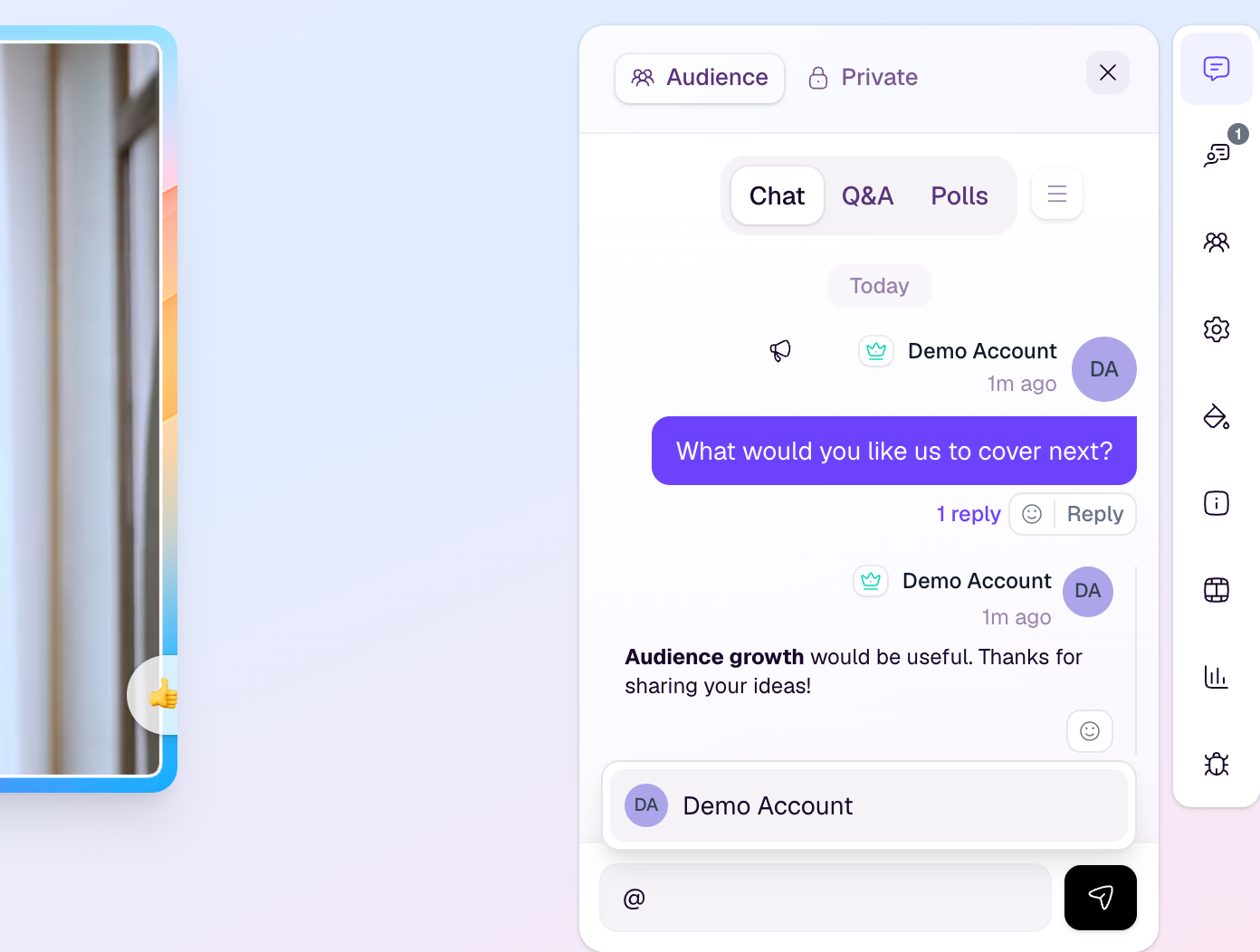
Type @ and start entering a name, then select the person from the suggestions. You can use the arrow keys to move through the suggestions and Enter to select a person. Press Escape to close the suggestions.
Suggestions only include people available to your session. Select a suggestion to add a mention; typing a name by itself does not select a person.
Format a message
Bold: surround the text with two asterisks on each side.
Italics: surround the text with one asterisk or underscore on each side.
Inline code: surround the text with backticks.
Links: paste a web address to make it clickable.
Line breaks: press Shift + Enter while typing.
Use chat during a broadcast
Use chat for quick reactions, links, reminders and lightweight conversation.
Direct structured questions to Q&A when they need a separate question workflow.
Hosts can promote useful chat moments to on-screen content when that adds value for viewers.
Have a moderator watch chat during busy sessions so the host can stay focused on production.
Moderation and access
Organizers, staff, hosts, co-hosts and moderators can manage inappropriate chat activity when moderation controls are available.
Attendees must use a valid watch page session to participate in broadcast chat.
When chat is in read-only mode, you can follow messages and expand existing threads, but cannot send messages, reply or react.
If an attendee cannot see chat, ask them to refresh the watch page and confirm they are using their registered watch link.