
Reuse CTAs with the CTA library
The CTA library lets you save calls to action so you can reuse them across broadcasts instead of rebuilding the same offer every time.
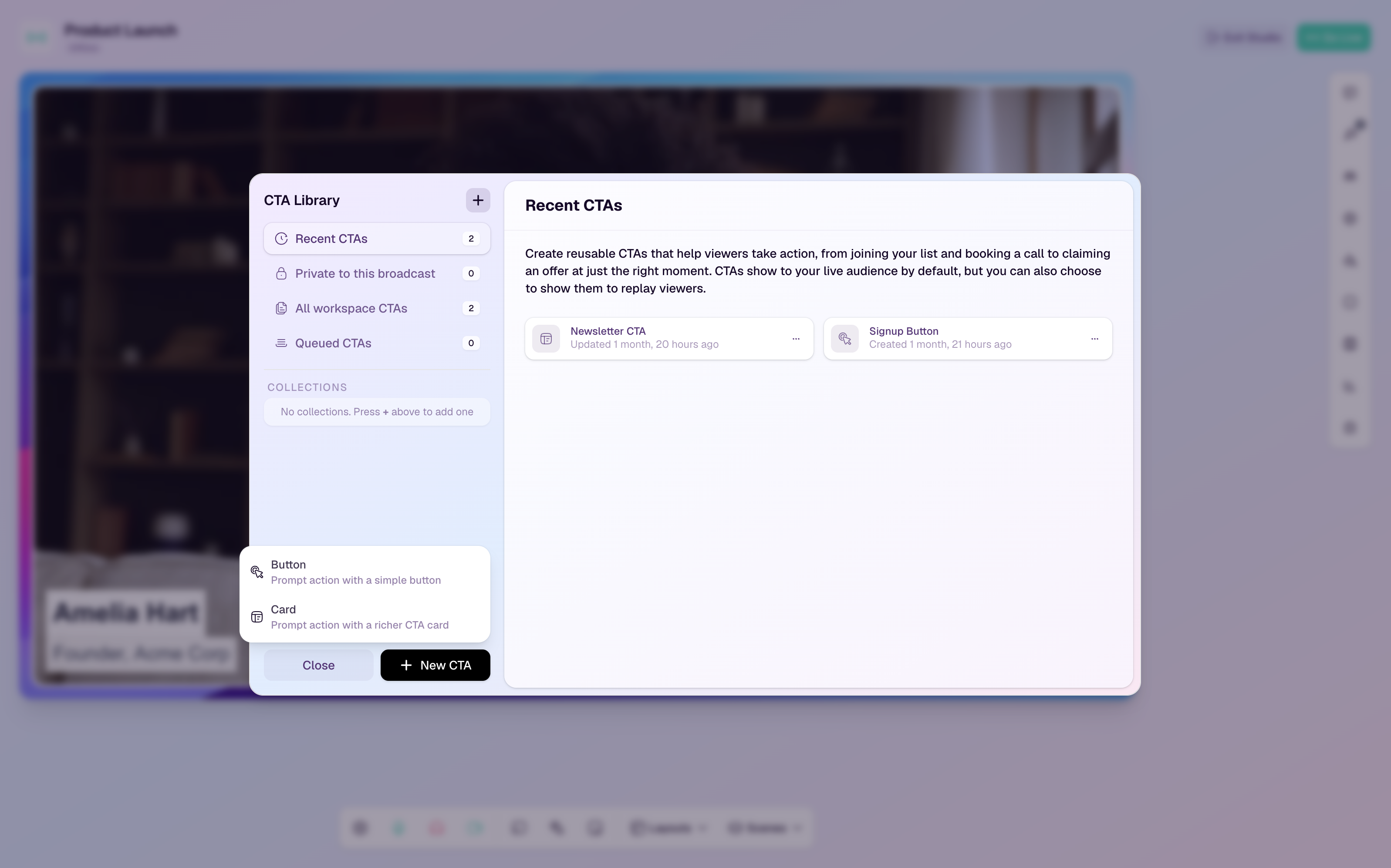
Choose where a CTA is saved
This broadcast only saves the CTA privately to the current broadcast.
Workspace library makes the CTA available to reuse across broadcasts in the same workspace.
Collection saves the CTA inside a named group in the workspace library.
Create a reusable CTA
Open the broadcast studio.
Open the CTA menu and select Manage CTA Library.
Select New CTA.
Choose Button or Card.
Set Saved To to Workspace library or to a collection.
Complete the CTA content, action, and appearance fields.
Save the CTA.
Use a saved CTA in a broadcast
Open the CTA Library from the broadcast studio.
Select All workspace CTAs, Recent CTAs, or the relevant collection.
Find the CTA you want to use.
Choose Queue, Show CTA, or Add to replay depending on when the CTA should appear.
Edit a reusable CTA
Use Edit when the core offer or copy has changed.
Update the CTA before showing it if the destination URL, pricing, or wording is no longer current.
If you need a one-off variation for a single broadcast, create a new broadcast-only CTA so the shared version stays clean.
When to use reusable CTAs
Use reusable CTAs for evergreen offers, demo booking links, newsletters, resource downloads, community links, and product pages.
Use broadcast-only CTAs for limited-time promotions or session-specific resources.
Use collections when your team runs several CTA themes, such as product demos, paid offers, and post-event follow-up.