
Connect a custom domain
Use a subdomain you own for your HeyStream public registration, watch, replay, and calendar links. For example, you could use events.example.com while keeping your main website where it is.
Before you start
You need permission to manage workspace settings. Workspace owners and admins can set this up.
You need access to the DNS settings for your domain.
Use a subdomain, such as events.example.com, rather than your main domain, such as example.com.
Each workspace can have one connected custom domain at a time.
DNS setup is currently manual. Connect DNS Automatically is marked Coming Soon and is not available yet.
Add your subdomain
Open your workspace in HeyStream.
Go to Settings > Custom Domain.
Select Add Domain.
Enter the subdomain you own, without a page path or query string.
Keep Connect DNS Manually selected and select Connect Domain.
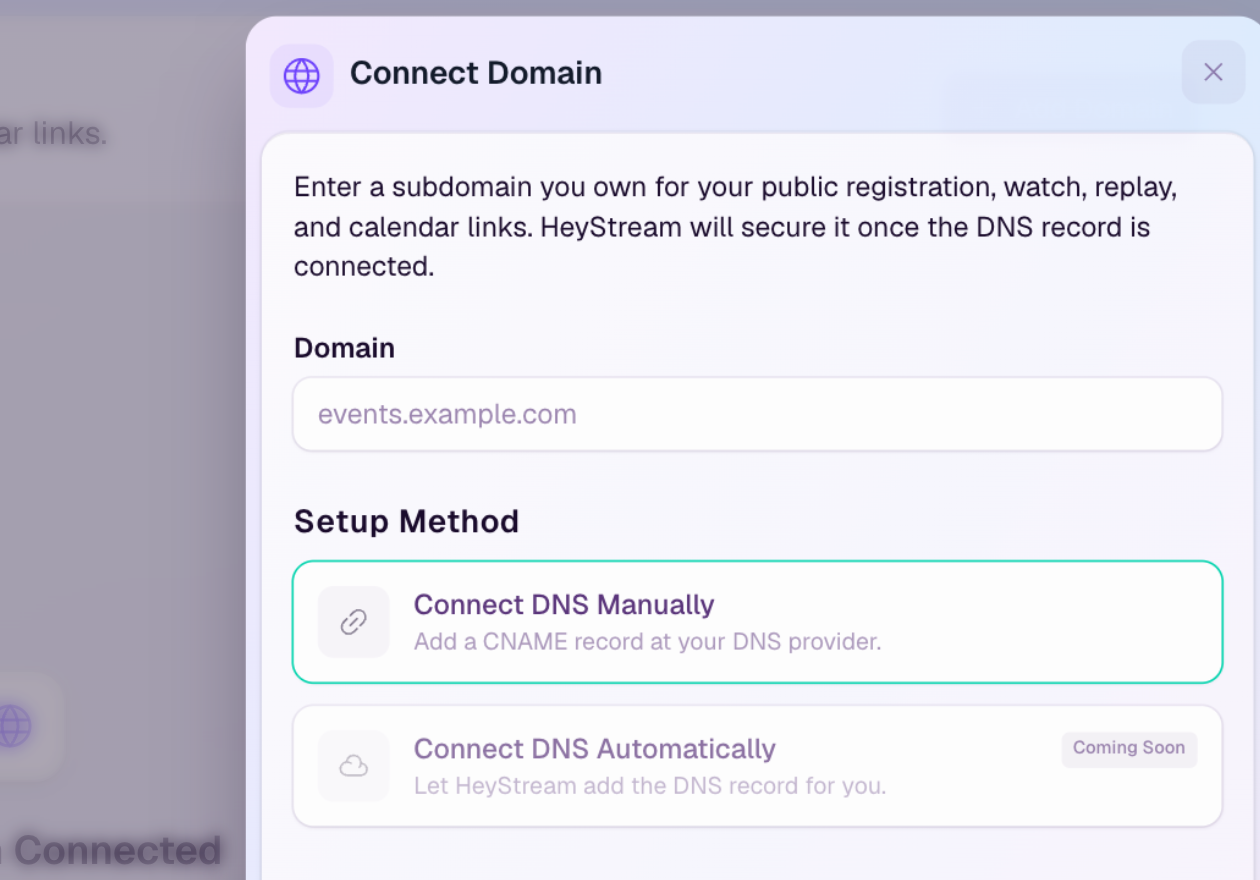
The form above shows where to enter your subdomain. It does not show a connected or verified domain.
Add the DNS records
After adding the domain, HeyStream shows the records to create at your DNS provider.
Open the DNS settings at the provider that manages your domain.
Add the displayed CNAME record. The target for production HeyStream domains is domains.heystream.com.
Copy the Name / Host and Value shown by HeyStream. Check whether your DNS provider adds the main domain automatically so you do not enter it twice.
If HeyStream shows additional verification TXT or CNAME records, add each of those too.
Save your DNS changes and return to HeyStream.
The chosen hostname should have one CNAME pointing to the displayed target. Remove or correct conflicting A, AAAA, or CNAME records for that hostname. Do not change unrelated records for your main website or email.
Wait for DNS and SSL
HeyStream checks the domain automatically. Use Check Status when you want an immediate recheck.
Wait until the domain is Active, DNS is Connected, and SSL is Secure before sharing your new links. DNS changes can take time to appear, and SSL activation may finish after DNS connects.
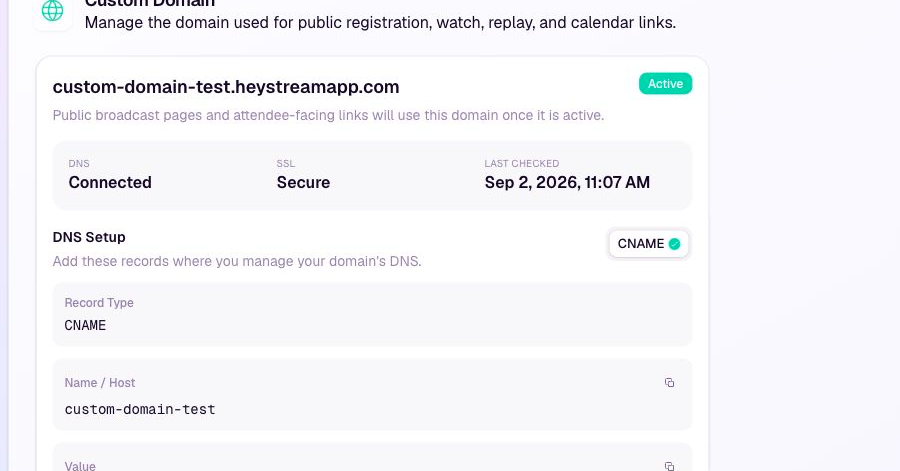
If DNS needs attention, check the record name, target, and any additional verification records. Resolve conflicting records and check again. If DNS is connected but SSL is still pending, give certificate setup time to complete and check the status again.
Share your branded links
Once the domain is active, open your broadcast or series and copy its current public links from HeyStream. Check the registration and viewing pages before promoting them. The custom domain applies to public registration, watch, replay, and calendar links for that workspace.
A custom domain does not replace your main website or the HeyStream account sign-in address. For talks managed by HeySummit, continue using the attendee links supplied by HeySummit.
Remove or replace a domain
Go to Settings > Custom Domain.
Select Remove Domain and confirm.
To replace it, add the new subdomain and complete DNS and SSL activation.
After removal, public links generated by HeyStream fall back to its default domain. Previously shared links using the removed domain may stop working, so update links on your website, in promotions, and wherever else you shared them.