
Start and stop a broadcast
Hosts start and stop a broadcast from the studio header. The studio can be used before going live, so presenters can join, test devices, share media, and prepare layouts before the audience sees the stream.
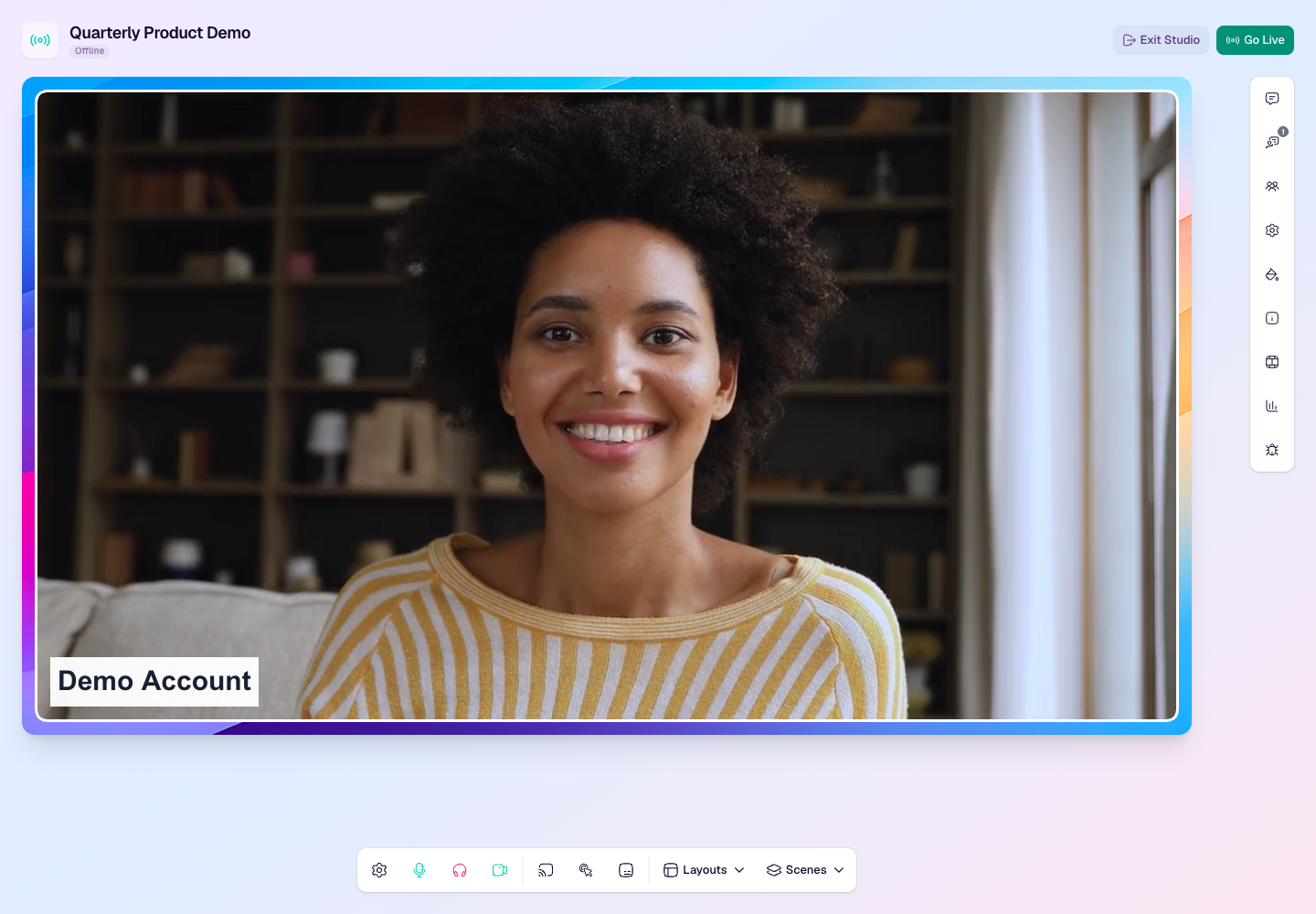
Before you go live
Join the studio and confirm your camera, microphone, and speaker settings.
Make sure at least one destination is active in Broadcast Settings.
Check the stage preview, presenter labels, branding, and any shared media or scenes you plan to use.
Confirm chat, Q&A, polls, and CTAs are ready if you plan to use them during the session.
Go live
Join the studio as a host, co-host, organizer, or staff member with permission to start the stream.
Wait for the studio connection to settle and for the Go Live button to become available.
Select Go Live from the studio header.
Watch the status badge until the broadcast is live, then confirm the watch page and any external destinations are receiving the stream.
Stop or end the broadcast
Stop Broadcast stops the live stream but keeps the studio available. Use this when you may need to go live again for the same broadcast.
Going live again after a stop starts a fresh recording unless the stream is resumed inside the short reconnect window shown by the studio.
End Broadcast ends the session for everyone, removes presenters from the studio, and prevents new recordings for that broadcast.
After stopping or ending, use the finished broadcast page to check recordings, replay processing, and post-broadcast metrics.
If Go Live is not available
Check that the studio is connected and that you are signed in with a role that can start the broadcast.
Activate at least one destination before starting.
Use a supported desktop browser, especially when using browser-based streaming.
Review any plan-limit messages in the studio if the broadcast duration, destinations, or output settings exceed your plan.