
Schedule broadcasts and set time zones
Scheduling a broadcast lets attendees see the correct time on registration pages, watch pages, emails, and calendar links. HeyStream uses your workspace timezone by default, and individual broadcasts can override it when needed.
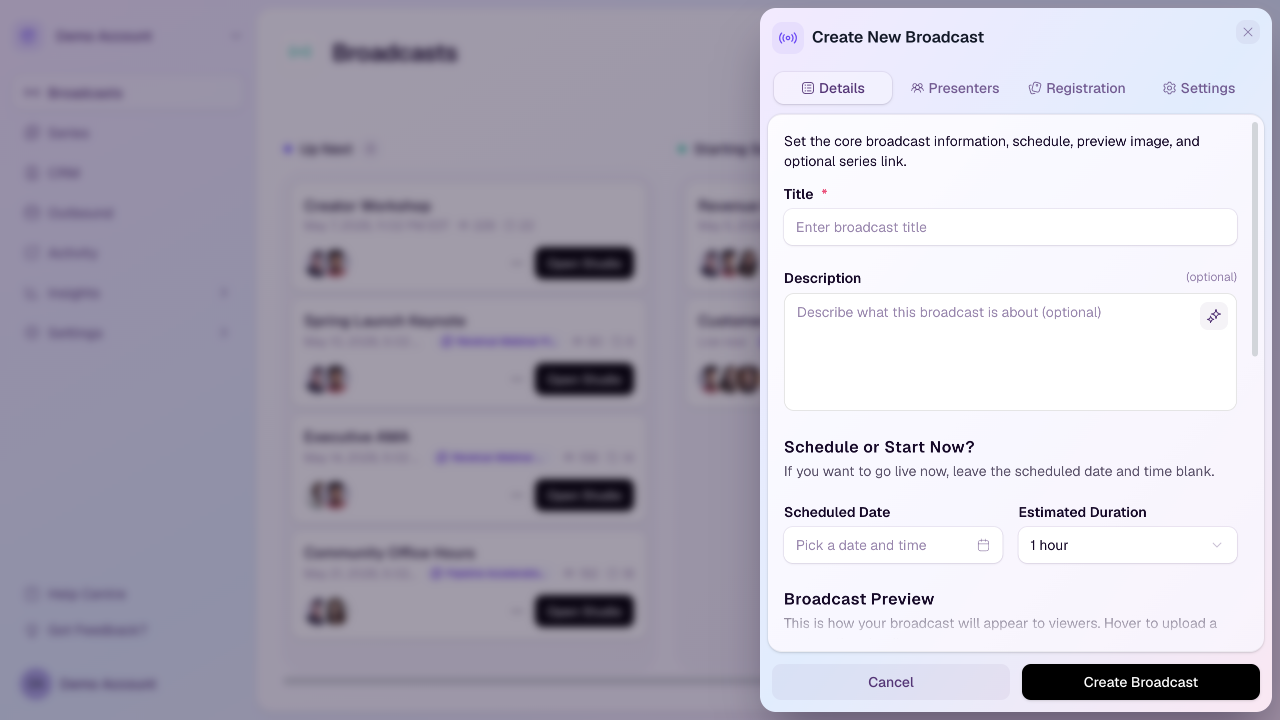
Schedule a new broadcast
Open Broadcasts in your workspace.
Select New Broadcast.
On the Details tab, choose a Scheduled Date.
Choose the Estimated Duration that best matches the session length.
If a timezone field appears, use the workspace default or choose a broadcast-specific timezone.
Save the broadcast.
Start now instead of scheduling
If you want to create a broadcast that you can start immediately, leave the scheduled date and time blank. The broadcast can still have a title, description, presenters, registration settings, and other setup details.
How time zones work
Workspace default: Each workspace has a default timezone in Workspace Settings.
Broadcast override: A scheduled broadcast can use a different timezone if this session is aimed at a different region.
Public pages and emails: The selected time is used anywhere attendees see the broadcast schedule.
Calendar links: Calendar downloads use the broadcast schedule so attendees can add the session to their calendar.
Estimated duration
Estimated duration helps hosts, presenters, and attendees understand the expected length of the event. It is also checked against your plan limit. If the selected duration is above your plan limit, HeyStream will ask you to choose a shorter duration or upgrade.
Editing the schedule
You can edit the scheduled date, timezone, or estimated duration before the broadcast starts. After making changes, reshare or resend any attendee information if the time has changed materially.
Good practice
Set the schedule before you share the registration page, then check the public registration page to make sure the date and time read correctly for attendees.