
Organize CTA collections
CTA collections help you group reusable workspace CTAs so producers can find the right offer quickly during a live broadcast.
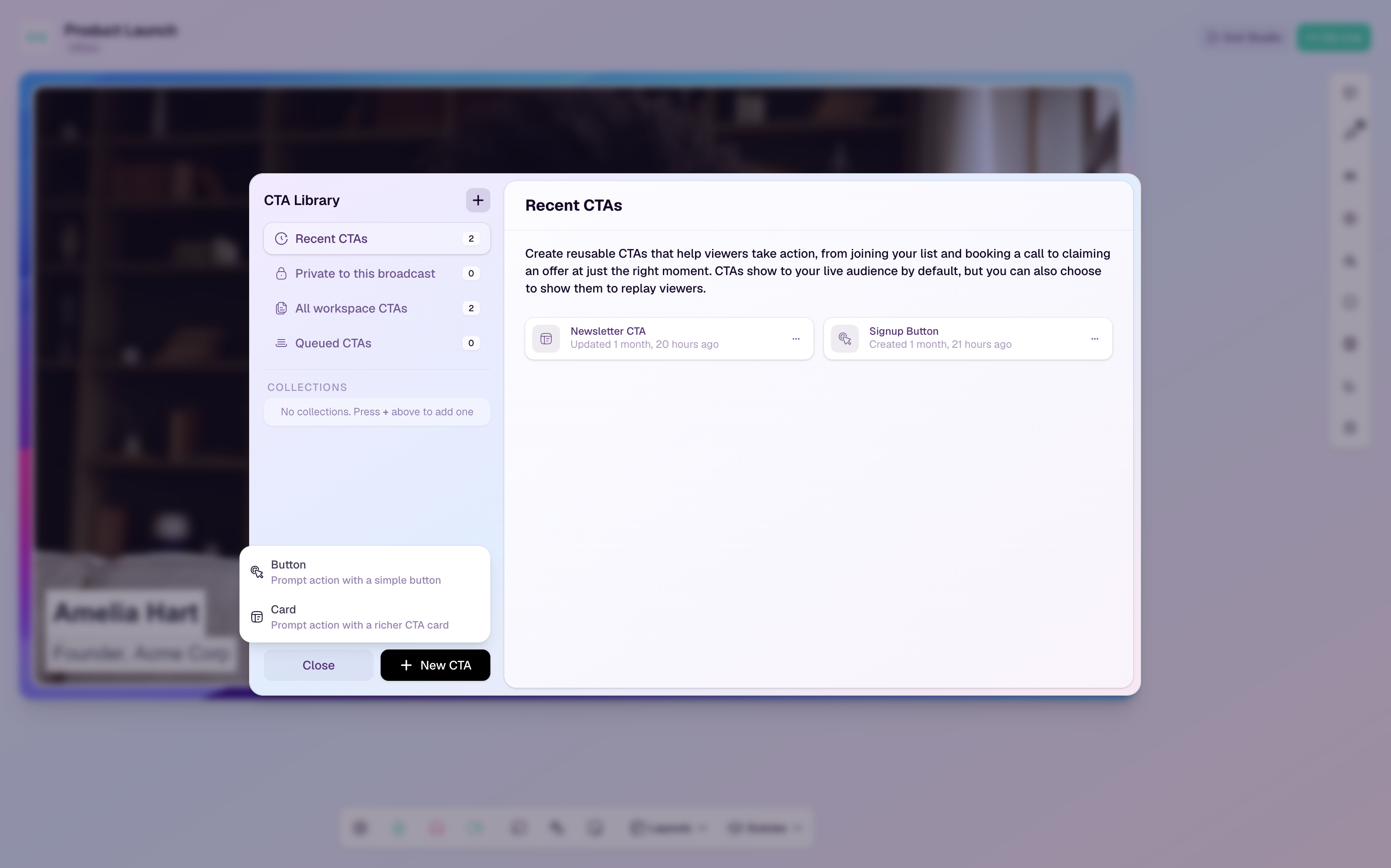
Create a collection
Open the broadcast studio.
Open the CTA menu and select Manage CTA Library.
In the CTA Library sidebar, find Collections.
Select the add control.
Enter a clear collection name and save it.
Save a CTA to a collection
Create a new CTA or edit an existing workspace CTA.
Set Saved To to the collection you want to use.
Save the CTA.
Open the collection from the sidebar to confirm the CTA appears there.
Rename or delete a collection
Open the collection from the CTA Library sidebar to manage it.
Rename a collection when the theme or campaign name changes.
Deleting a collection removes the grouping, but the CTAs remain in the workspace library.
Collection ideas
By funnel stage: Learn more, Book a call, Start trial, Buy now.
By campaign: Launch week, Partner webinar, Monthly demo, Customer training.
By destination: Resources, Offers, Community, Sales handoff.
By team: Marketing, Sales, Customer Success, Partnerships.
Tips
Keep collection names short so they are easy to scan in the studio.
Remove old or duplicate CTAs from collections before a high-pressure live session.
Put the most frequently used CTAs in collections producers already understand.