
Use the HeyStream public API
The HeyStream public API lets you connect a workspace to your own systems and automated workflows. You can manage broadcasts and series, register attendees, read contacts and cloud recordings, and create signed webhooks.
Use the API reference for request fields, response examples, and the full endpoint list.
Before you start
Creating, rotating, and using API keys requires the workspace owner's account email to be confirmed and their paid plan to be active after the trial has ended. Selecting a paid plan during a trial does not unlock API access. If a request returns account_ineligible, ask the owner to confirm their email or restore active paid billing before retrying. Replacing a valid API key will not resolve account eligibility. If an action is blocked, follow Confirm email, View trial, or View billing as shown in HeyStream. If you are a teammate, ask the workspace owner to confirm the owner's email address or resolve the account's billing status.
You must be a workspace owner or admin to manage API keys.
Keep every API key in a secure server-side secret store. Never put a key in browser code, a public repository, a URL, or a log.
Decide which actions your integration needs so you can grant only the required scopes.
Use a test key while developing and replace it with a live key when your integration is ready.
Create an API key
Open Workspace settings.
Select API Keys.
Select Create API key.
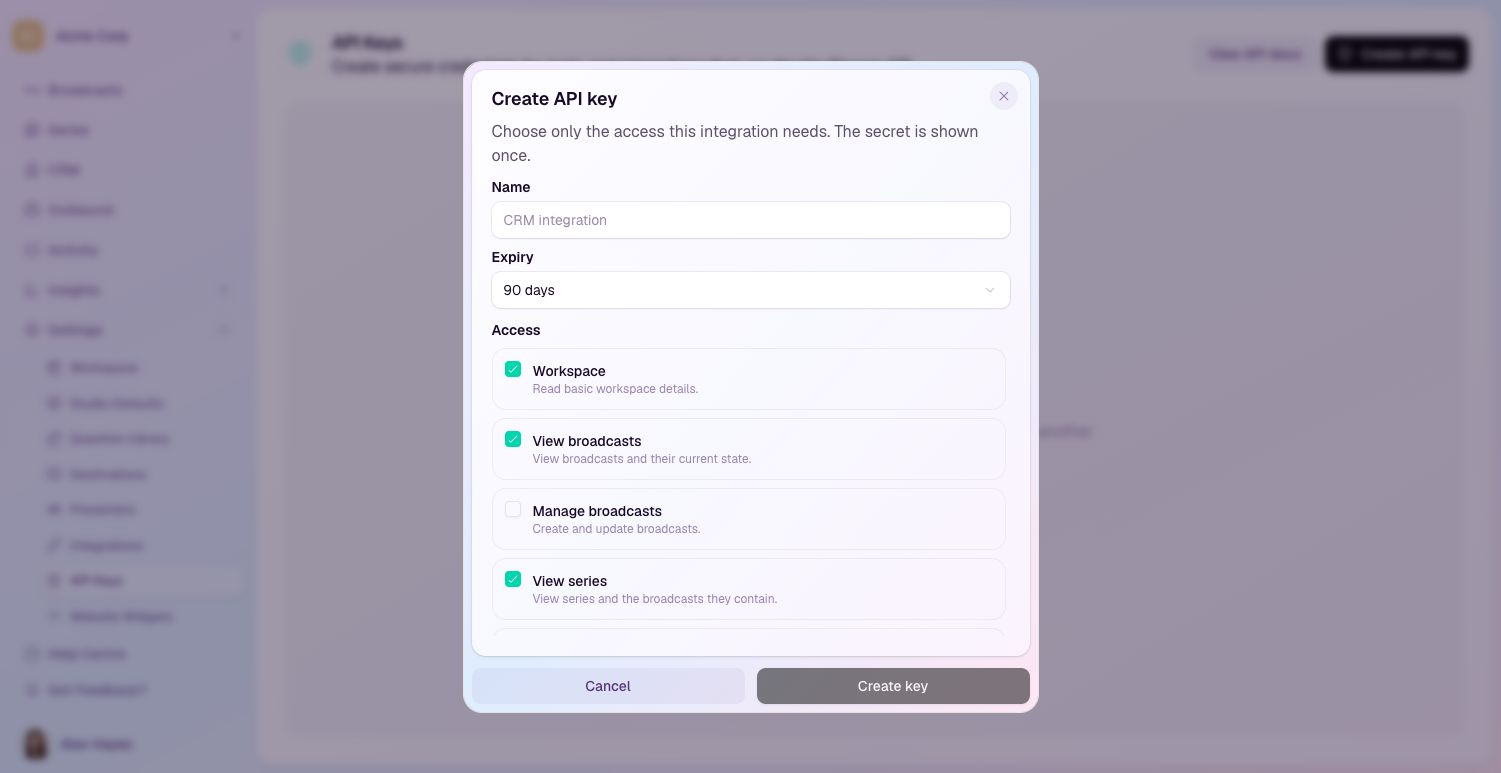
Give the key a name that identifies the system or workflow that will use it.
Choose an expiry period of 90 days, one year, or no expiry.
Select only the scopes the integration needs.
Create the key, then copy and store the secret immediately. HeyStream will not show the secret again.
Send the key as a bearer token in the `Authorization` header. Start with the workspace endpoint to confirm that the key works and belongs to the expected workspace.
Choose the right scopes
Scopes control what an API key can read or change. A key cannot receive access that its creator does not have.
Available scopes cover:
Workspace details.
Broadcasts and series.
Registrations and contacts.
Cloud recordings and short-lived download links.
Webhook configuration, delivery history, secret rotation, and redelivery.
Grant read access when the integration only needs to retrieve data. Add write access only for resources the integration must create or update.
Supported workflows
You can use the API to:
Create, list, read, and update broadcasts and series.
List the broadcasts in a series.
Register attendees for broadcasts or series and read registrations.
Read workspace contacts.
List cloud recordings and request short-lived download links.
Create and manage signed webhook endpoints.
Review redacted webhook delivery history and redeliver a retained event.
Normal HeyStream plan limits and workspace permissions still apply to API actions.
Work with lists and repeated requests
List endpoints return up to 50 items by default and accept a maximum limit of 100. When a response says more items are available, send its next cursor with the following request. Treat cursors as opaque and do not reuse them with different filters.
Create and registration requests, webhook secret rotation, and manual webhook redelivery require an `Idempotency-Key` header. Repeating the same request with the same idempotency key within 24 hours returns the original result. Reusing the key with different input returns a conflict response.
Handle limits and errors
Authenticated responses include rate-limit headers. If the API returns `429`, wait for the number of seconds in `Retry-After` before trying again.
Error responses include a code, a plain-English message, and a request ID. Keep the `X-Request-Id` response header when contacting support so the team can trace the request without seeing your API key or request body.
Verify webhook requests
API-managed webhooks sign each request with a secret. Verify the signature against the exact request body before parsing JSON, reject timestamps older than five minutes, and use the event ID to prevent duplicate processing.
See Verify HeyStream webhook signatures for the verification steps.
Rotate or revoke a key
Open Workspace settings > API Keys to review a key's status and last-used time.
To rotate a key safely:
Create or rotate to a replacement key.
Update the integration to use the new secret.
Confirm the integration works.
Revoke the old key.
Revoke a key immediately if it is exposed or no longer needed. HeyStream checks a key on every request, so a revoked key stops working on its next request.
Keep keys safe
Use one key per integration or environment so you can rotate and revoke it independently.
Give each key a clear name and the smallest useful set of scopes.
Prefer an expiry date unless there is a clear reason to use a key with no expiry.
Never share a key in support messages, screenshots, browser code, or client-side applications.
Rotate keys on a regular schedule and whenever someone who could access the secret leaves the project.