
Destination health and multistreaming issues
Use this guide when an external destination will not connect, a multistream destination looks unhealthy, or a platform such as YouTube, LinkedIn, Facebook, or a custom RTMP endpoint is not receiving the stream.
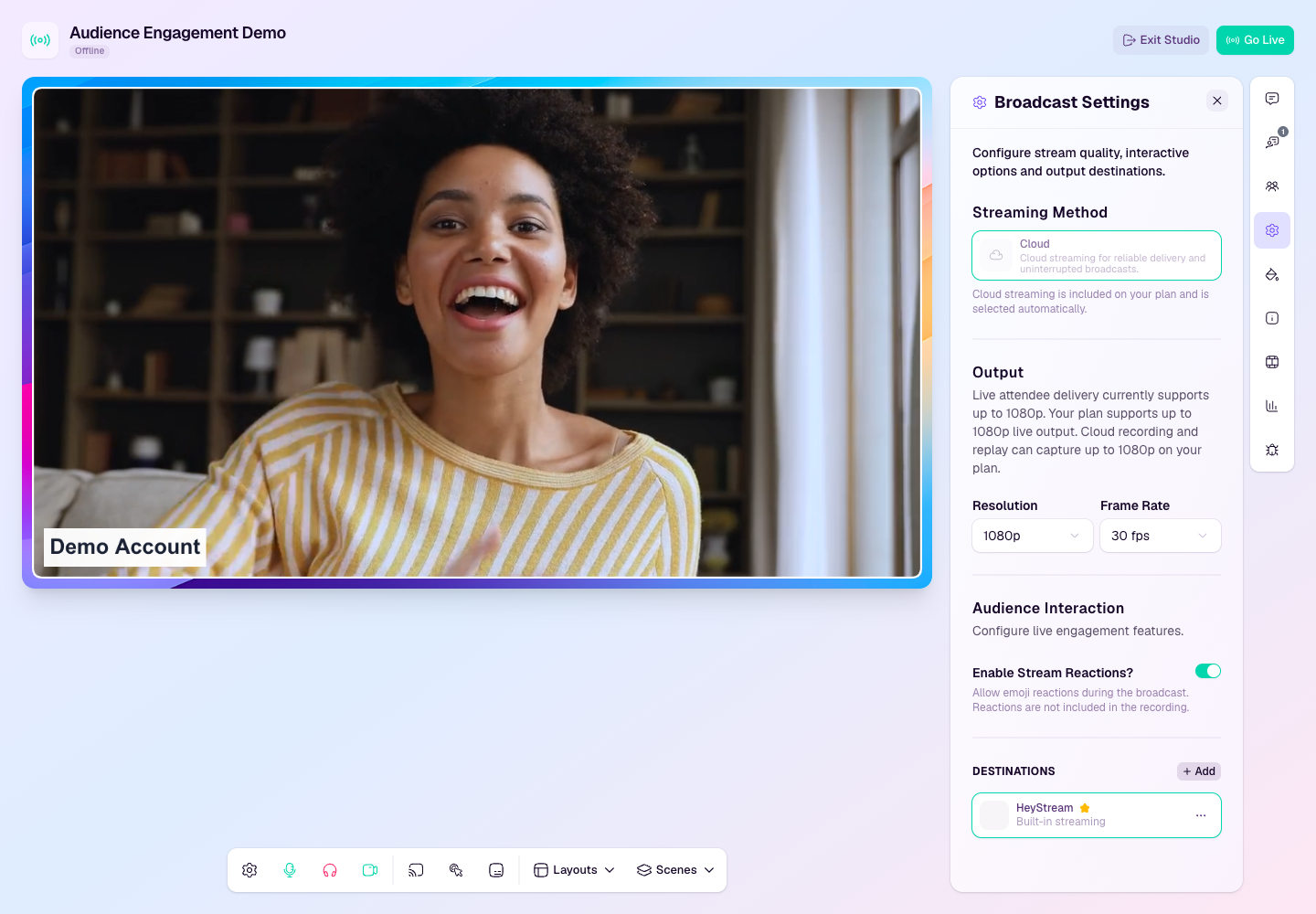
Before going live
Create or update the destination in Settings, then confirm it is available for the broadcast.
Check that the destination is active for the broadcast before you start streaming.
Confirm the stream URL and stream key are current. Some platforms generate new keys for each scheduled event.
Make sure your plan includes the number of additional destinations you want to use.
Start the event on the destination platform if that platform requires a separate go-live step.
Destination will not connect
Copy the RTMP URL and stream key again from the destination platform, and make sure there are no extra spaces.
If the platform has a scheduled event, confirm the key belongs to that exact event and has not expired.
Regenerate the stream key in the destination platform if the old key has been used, revoked, or changed.
Check whether the platform requires live streaming to be enabled on the account before it accepts RTMP input.
If HeyStream reports a validation error, update the destination and test again before the broadcast starts.
One destination is unhealthy while HeyStream is live
Keep the main HeyStream broadcast running while you investigate the affected destination.
Check the destination platform dashboard to see whether it is receiving data, waiting for preview, or rejecting the stream.
If only one external destination is affected, the issue is usually with that platform, event, stream key, or account permission.
Share the HeyStream watch page with viewers if an external destination cannot be recovered during the live event.
Quality problems on external destinations
Use a strong upload connection from the host location, especially when streaming to multiple destinations.
Close other upload-heavy apps on the host network.
Allow time for destination platforms to process and transcode the stream before judging quality.
If a platform shows lower quality than HeyStream, check that platform’s live control room for warnings about bitrate, resolution, or network stability.
Plan and destination limits
If HeyStream blocks another destination, check the account plan and active destination limit.
Remove destinations that are not needed for the broadcast before adding new ones.
If a default destination cannot be applied to every active broadcast, one or more broadcasts may already be at the plan limit.