
Reactions
Reactions let attendees send lightweight emoji feedback during a live stream. They are useful when you want quick energy from the room without asking everyone to post in chat.
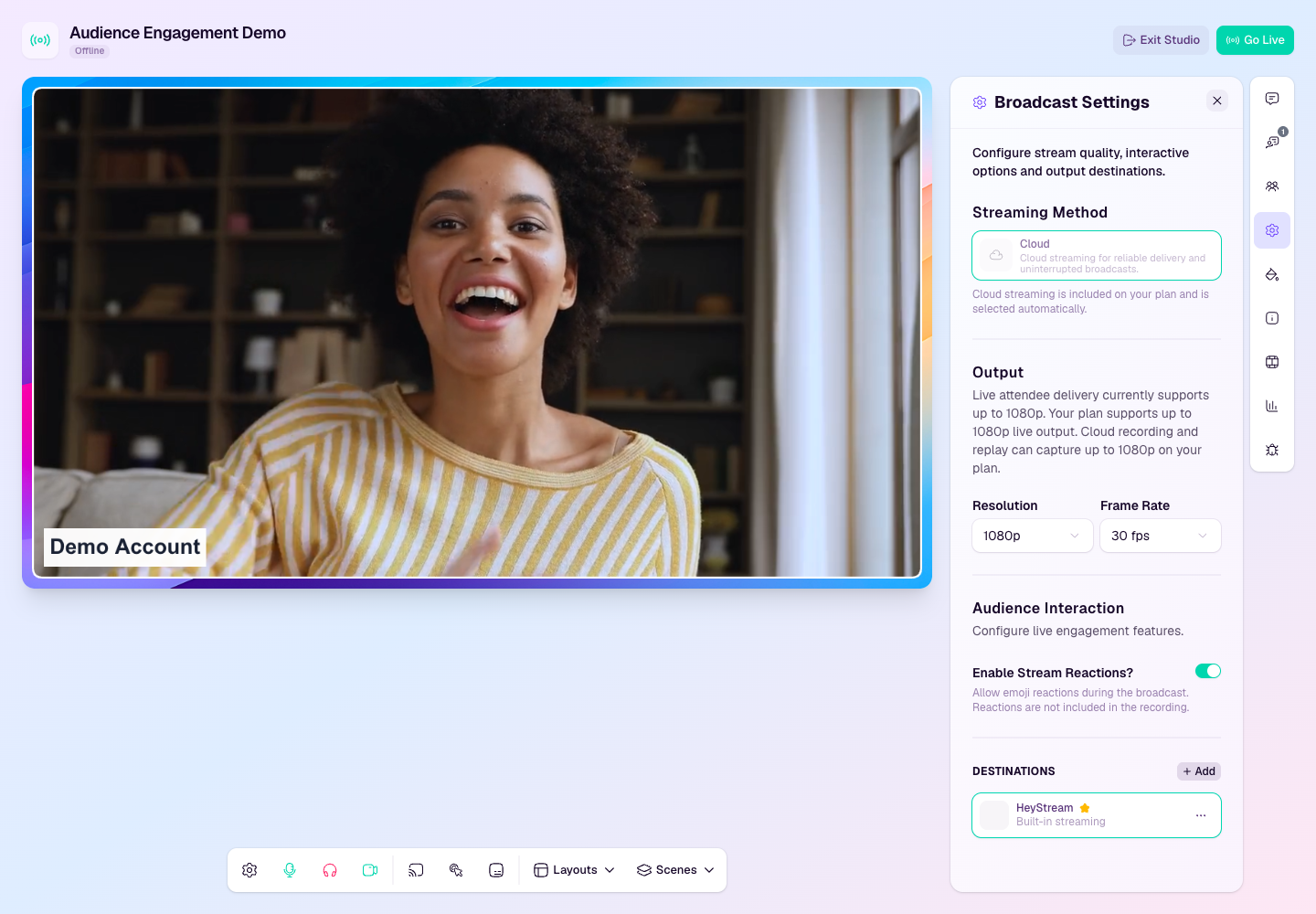
Turn reactions on or off
Open the broadcast studio.
Open Broadcast Settings from the studio side rail.
Find Audience Interaction.
Turn Enable Stream Reactions on or off.
How attendees use reactions
When reactions are enabled and the broadcast is live, attendees can tap reaction controls on the watch player.
Reactions animate over the player so presenters can sense audience response in real time.
Reactions are intentionally lightweight. Use chat, Q&A, or polls when you need written responses or structured answers.
When to use reactions
Use reactions during welcomes, announcements, demonstrations, and recap moments.
Turn them off for formal sessions where you want a quieter viewing experience.
If you are recording the session, remember that reactions are an engagement layer rather than core presentation content.