
Create and run your first broadcast
A broadcast is a single live or replayable event in HeyStream. Use this guide to create your first broadcast, prepare the attendee experience, and go live from the studio.
Create the broadcast
Open your workspace in HeyStream.
Go to Broadcasts.
Select New Broadcast.
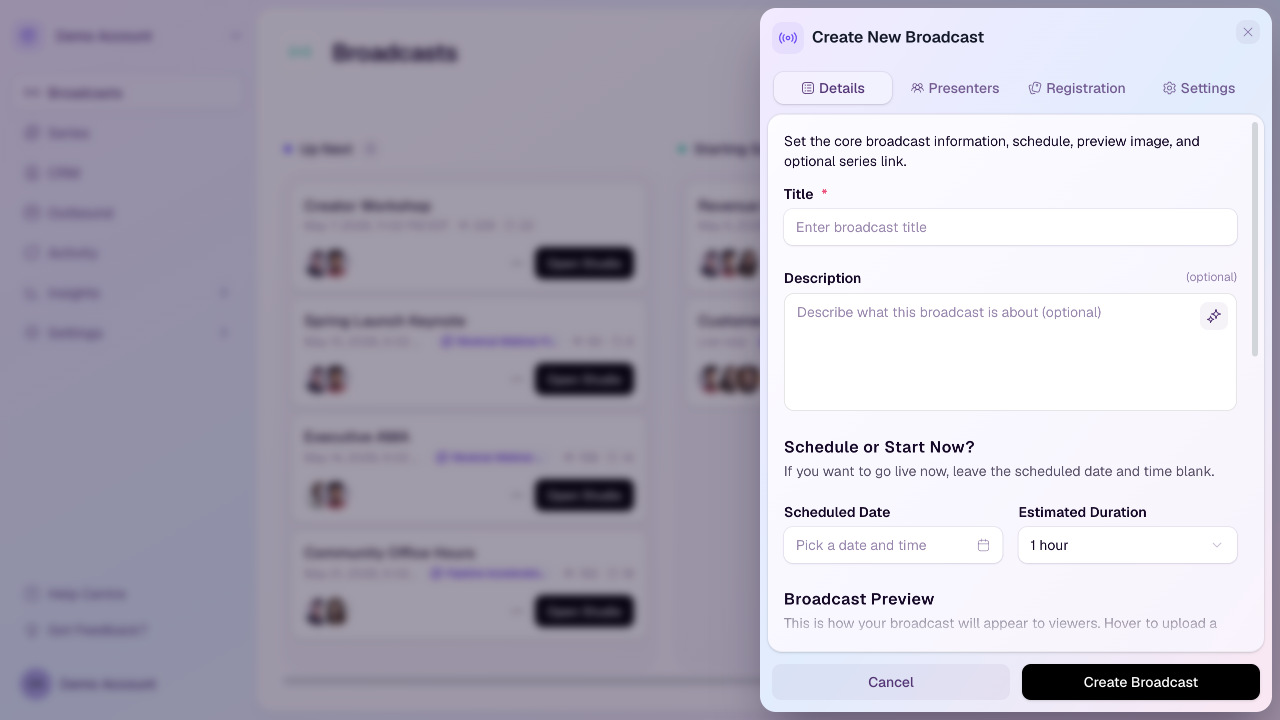
On the Details tab, enter the broadcast title and optional description.
Choose the scheduled date and time, or leave the scheduled date blank if you want to go live now.
Set the estimated duration so your team has a clear plan for the session length.
Add or review the broadcast preview image if you want a custom thumbnail.
Prepare the broadcast
Open the broadcast's actions menu and select Prepare broadcast. You can review the broadcast details and presenters, set the background, logo, video tile style, and presenter labels, and use the readiness checklist to see what still needs attention.
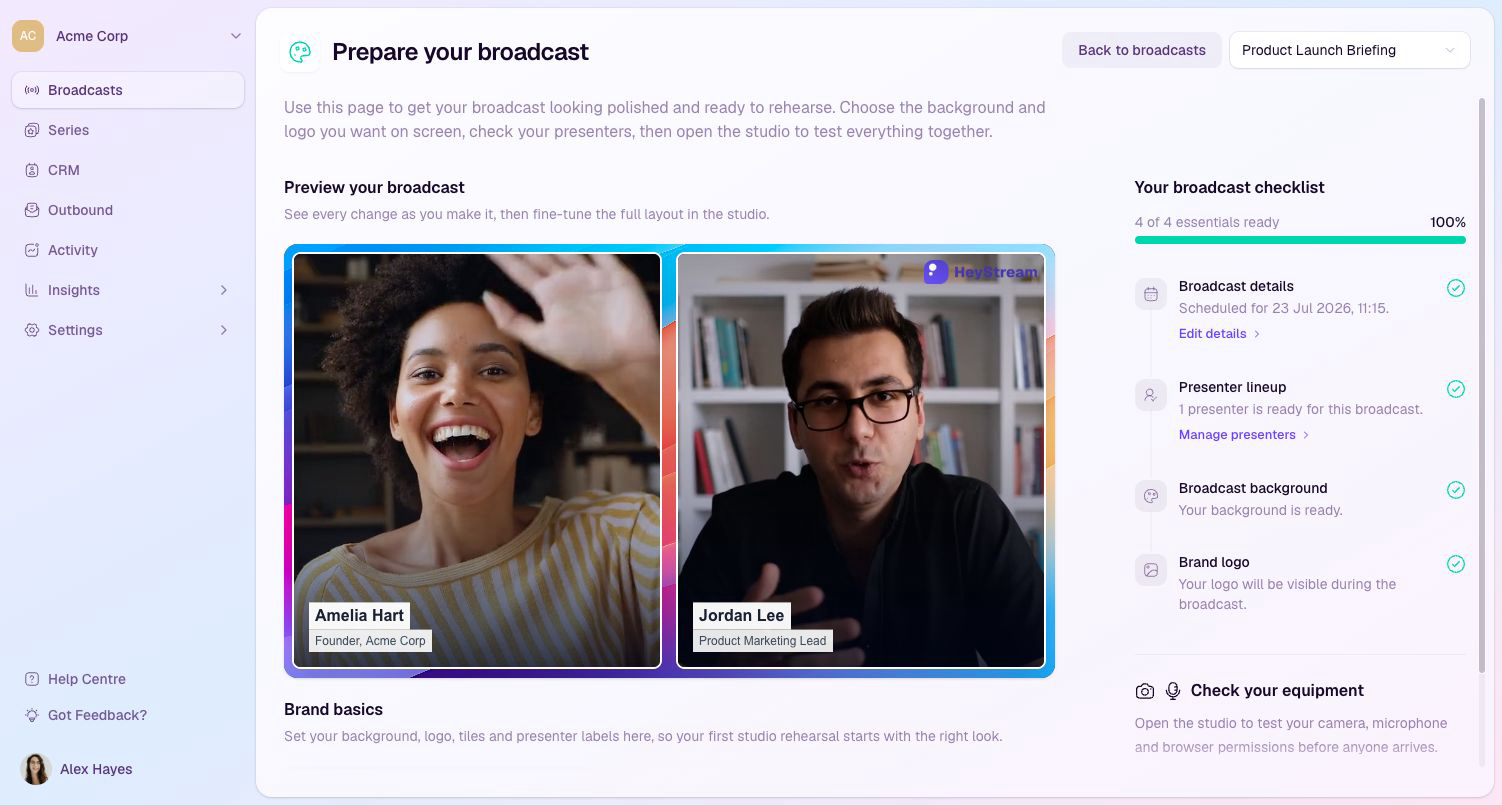
When the checklist is complete, select Open studio and rehearse to check equipment and practice the full broadcast with your team.
Add presenters
Use the Presenters tab to choose who should join the studio for the broadcast. Presenters can be speakers, hosts, moderators, or production teammates depending on how your team runs live sessions.
Add the people who need access before the broadcast starts.
Check your own role so the studio opens with the right host or presenter permissions.
Share presenter invite links only with the people who should join backstage.
Configure registration
Use the Registration tab to decide whether attendees can sign up and which questions they should answer. Name and email are handled by default, and you can add custom questions when you need more context.
Keep registration enabled if you want a hosted signup page.
Add custom questions for role, company size, interest area, or anything else useful for follow-up.
Allow registration after the live session if you want replay viewers to keep signing up.
Review broadcast settings
Use the Settings tab to review options that affect the viewer experience during the event. For example, you can control whether reactions are enabled.
Share the broadcast
After the broadcast is created, share the registration page with your audience. You can also use website widgets if you want people to register from your own site or campaign pages.
Join the studio
From Prepare your broadcast, select Open studio and rehearse, or open the broadcast from the Broadcasts page and select Open Studio.
Check your camera, microphone, and speaker settings.
Confirm presenters, layouts, shared content, CTAs, and any destinations before the start time.
Go live
When your team is ready, start the broadcast from the studio. During the session, you can manage presenters, share content, use chat, Q&A, polls, reactions, show CTAs, and watch live audience activity.
After the broadcast
Once the broadcast ends, review the recording, replay, audience CRM, activity feed, and insights. Use the registration, attendance, engagement, and CTA signals to decide who should receive follow-up.