
Stream to additional destinations
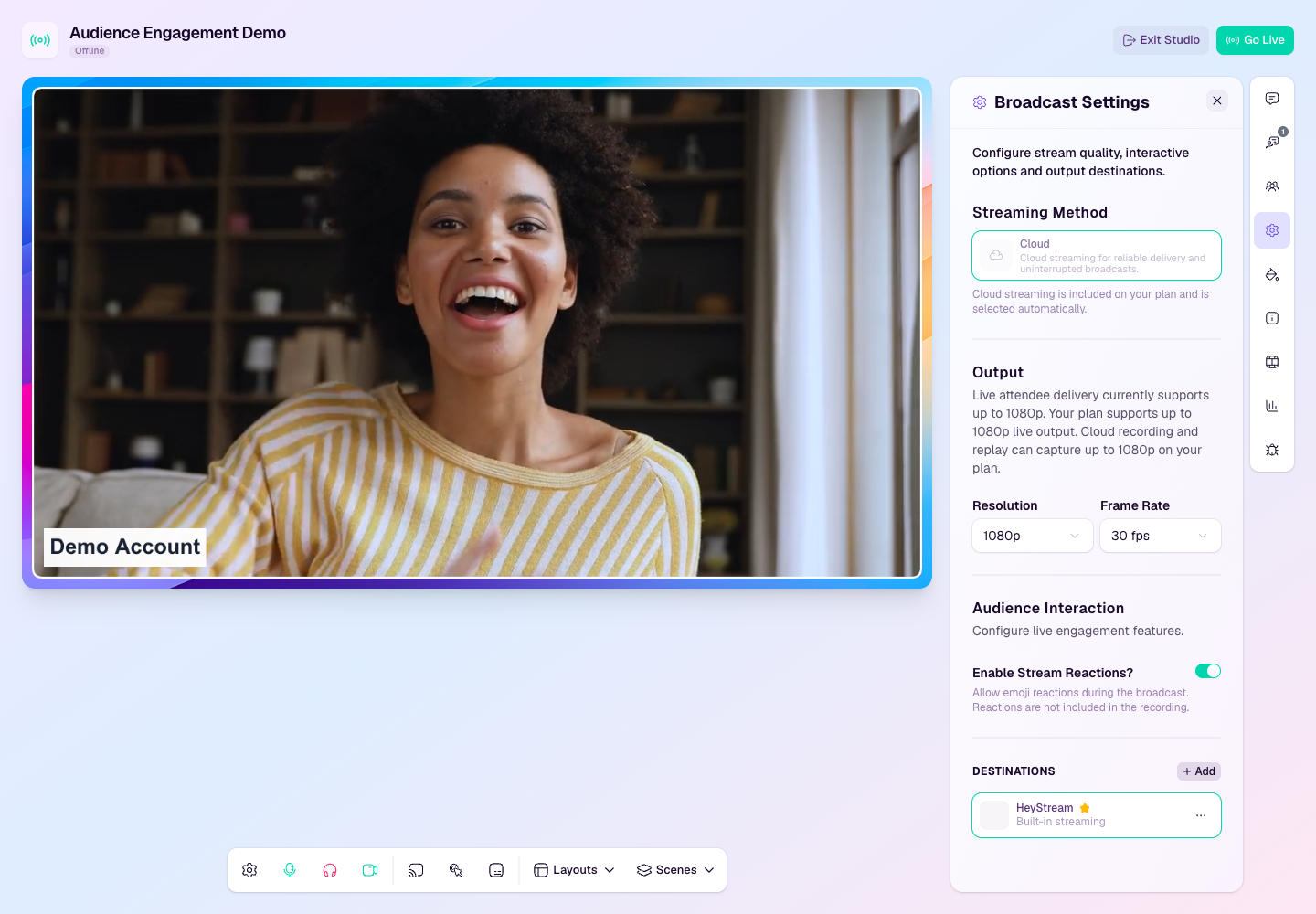
Additional destinations let you send the same HeyStream broadcast to external channels such as YouTube, Facebook, LinkedIn, or a custom RTMP endpoint. Configure destinations before you go live so the studio can start every selected output together.
Before you add a destination
Get the stream URL and stream key from the destination platform before opening HeyStream.
Check your plan limit for additional active destinations, especially when a broadcast already has more than one external output.
Organizers and staff can add, configure, delete, and set default workspace destinations.
Hosts and co-hosts can select existing destinations for a broadcast, but they cannot add or manage workspace-level destination settings.
Add and activate destinations before the broadcast starts. Destination changes are restricted while the stream is live.
Keep the built-in HeyStream destination active when you want attendees to watch on the hosted watch page.
Add a destination
Join the studio as an organizer or staff member.
Open Broadcast Settings from the studio side rail.
In Destinations, select Add and choose the provider you want to connect.
Enter the destination details, including stream URL and stream key where required.
Save the destination, then make sure it is active for the current broadcast.
Use defaults and per-broadcast activation
A default destination is added automatically to new broadcasts when your plan allows it.
A destination can exist in the workspace without being active for every broadcast.
Hosts, co-hosts, organizers, and staff can use Broadcast Settings to activate or deactivate existing destinations for the current broadcast before going live.
If a host or co-host needs a new destination, ask an organizer or staff member to add it before the broadcast starts.
Deactivate any destination that should not receive the live feed before you press Go Live.
Check destination health
After going live, watch the destination status indicators in the studio.
If an external platform shows no video, confirm the destination is active and that the stream key has not expired or been regenerated.
If one destination has an issue, the HeyStream watch page may still be working. Check each output separately before stopping the broadcast.