
Add live and replay CTAs
Calls to action help viewers take the next step while they are already engaged with your broadcast. You can prepare them before rehearsal, show them during the live stream, and keep relevant offers available in the replay.
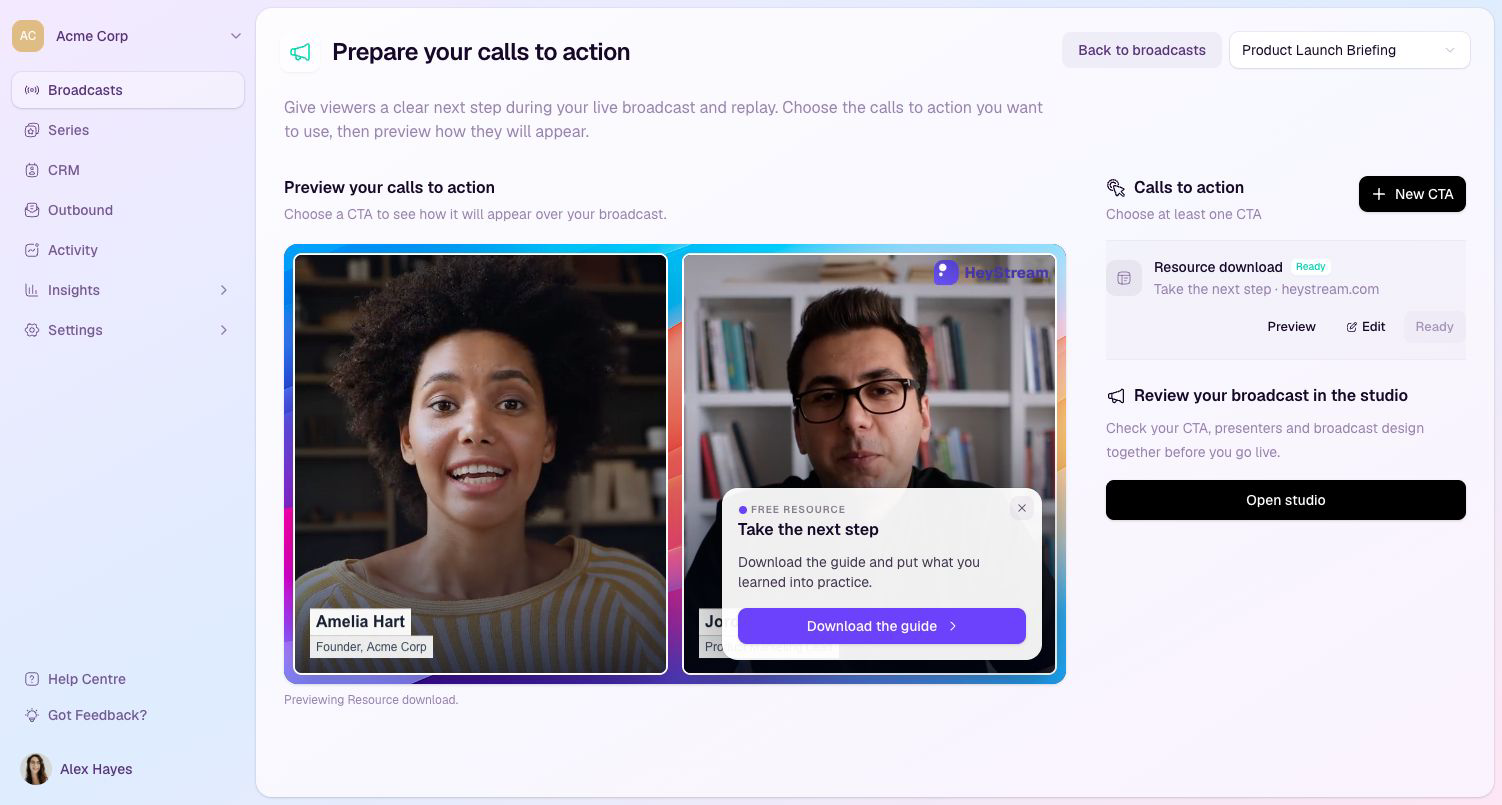
Prepare a CTA before opening the studio
Go to Broadcasts.
Open the broadcast's actions menu and select Prepare calls to action.
Choose a suggested starting point, or select New CTA.
Add an internal name, the viewer-facing copy, the button label, and the destination URL.
Use the appearance options to choose where the CTA appears and how it should look.
Save the CTA.
Select Add to broadcast so it is ready for rehearsal and the live session.
Preview the CTA over the broadcast, then select Open studio when you are ready to rehearse.
You can also create or manage CTAs from the CTA button in the studio toolbar.
Show a CTA live
Start the broadcast and wait until the studio shows that it is live.
Open the CTA menu from the studio toolbar.
Choose Show CTA on the CTA you want to display.
Leave the CTA live while it is relevant, then choose Clear CTA when the moment has passed.
Queue a CTA
Use Queue when you want to prepare the CTA before you are ready to show it.
Queued CTAs appear in the CTA menu so the producer can activate them quickly during the broadcast.
Only one CTA should be live at a time, so clear the current CTA before moving to the next offer.
Add a CTA to the replay
When a CTA should also appear to replay viewers, choose Add to replay for that CTA.
Replay CTAs are shown in the replay experience so viewers can still take action after the live session has ended.
Use replay CTAs for resources, waitlists, bookings, product pages, and offers that stay relevant after the live stream.
Tips
Keep the button label specific, such as Download the workbook, Book a demo, or Join the waitlist.
Show CTAs when the host has just explained the value, not at random points in the session.
Use a card CTA when the viewer needs a little context before clicking.
Use a button CTA when the next step is already obvious.