
Import contacts from a CSV
HeyStream can import contacts from a CSV file and link them to broadcasts or series in the same workflow. Use this when you already have permission to contact an audience and want to bring that list into your workspace CRM.
Before you start
In addition to an active paid plan after the trial, imports require the workspace owner's account email to be confirmed. If an action is blocked, follow Confirm email, View trial, or View billing as shown in HeyStream. If you are a teammate, ask the workspace owner to confirm the owner's email address or resolve the account's billing status.
Contact imports are available on paid plans. Trial accounts cannot import contacts.
Your CSV must include a header row.
Each import can include up to 1,000 rows.
You need columns for Name and Email.
You must confirm that you have permission to add these contacts and send them messages through HeyStream.
To register imported contacts for a broadcast, choose an active broadcast.
To subscribe imported contacts to a series, choose a series with registration open.
Open the importer
Sign in to HeyStream.
Open your workspace.
Go to Contacts.
Click Import Contacts.
You can also start an import from some broadcast or series views when you want the contacts linked to that item.
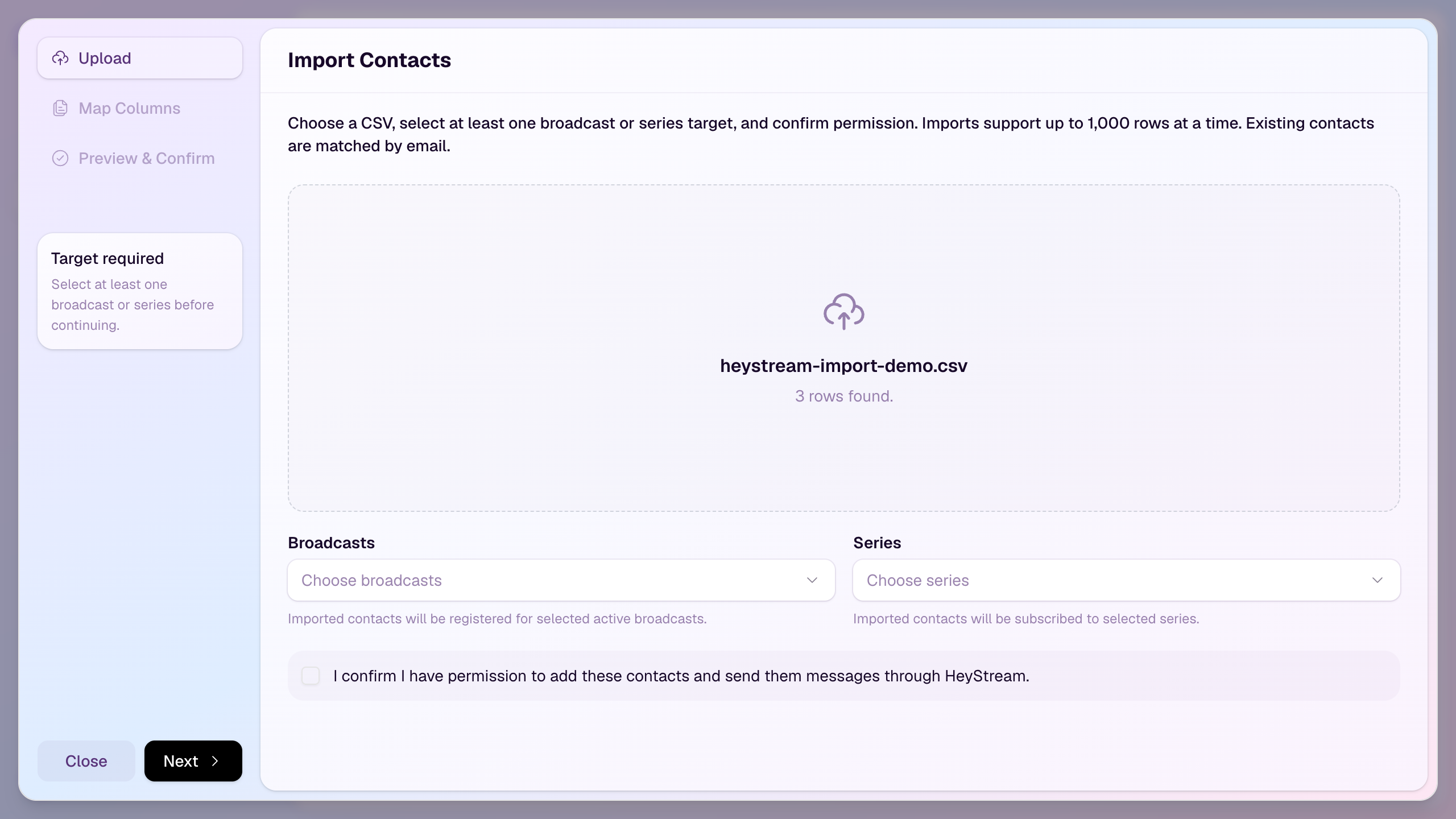
Upload your CSV
Click Choose a CSV file.
Select the CSV from your computer.
Choose at least one broadcast or series target.
Confirm that you have permission to add and message the contacts.
Click Next.
HeyStream reads the first row as the column names and shows how many rows were found.
Map columns
Choose which CSV column should be imported as Name and which should be imported as Email. Email and Name are required before you can continue.
HeyStream may suggest mappings automatically when your headers use common labels such as Email, Email address, Name, or Full name.
Review the preview
Before importing, HeyStream checks the rows and shows:
Rows found in the CSV.
New contacts that will be created.
Existing contacts that will be updated.
Rows that need review.
Existing contacts are matched by email. If a row matches an existing contact, HeyStream keeps the existing contact and only fills a missing name when the import has one.
Rows are skipped when the email is missing, invalid, repeated in the file, or belongs to a contact that has unsubscribed, complained, or hard bounced. Hover over the row status icon to see the reason.
What happens after import
When you click Import, HeyStream queues the import and continues processing it in the background. You can close the import window after the job appears in the sidebar.
Imported contacts are added to the workspace CRM. If you selected broadcasts or series, HeyStream links eligible contacts to those targets and records the activity on the contact profile.
Common issues
Contact imports are not available on trials
Upgrade to a paid plan before importing contacts. This limit helps protect account quality and reduce spam risk.
Rows need review
Open the preview and check the status icon beside each row. Fix the CSV, upload it again, and re-run the preview.
A broadcast or series warning appears
Finished broadcasts and series with registration closed cannot receive imported registrations or subscriptions. Choose an active target before importing.
The import is still running
Large imports can take a little time. Check the sidebar for the import status, or return to Contacts after the job finishes.