
Billing and plan access issues
Use this guide when a feature is unavailable, a plan limit blocks an action, billing details need updating, or a workspace is not behaving as expected after a plan change.
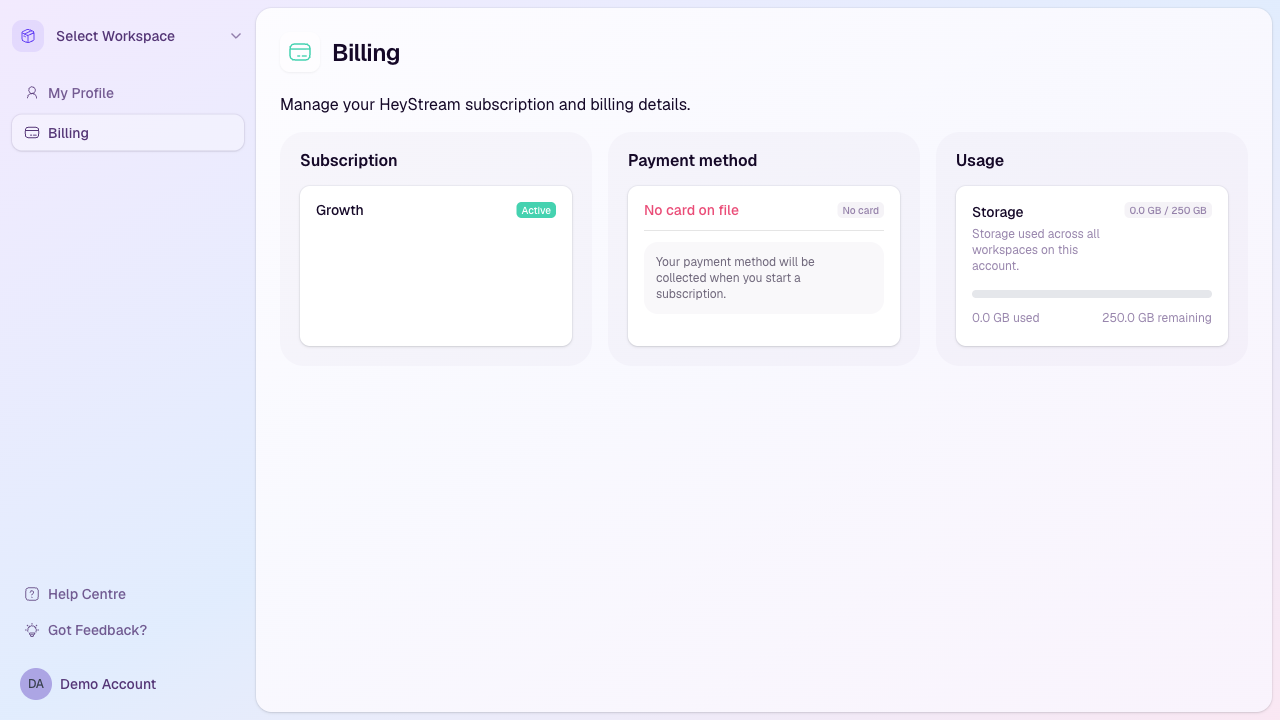
Feature is unavailable
Open Account Billing and check the current plan and subscription status.
Compare the blocked feature with your plan limits, such as attendees, duration, storage, workspaces, presenters, destinations, recordings, or outbound tools.
Refresh the page after upgrading or changing plan details.
If the feature is tied to a workspace, make sure you are in the workspace covered by the active account plan.
Plan limit blocks an action
Read the message shown in the product. It usually names the limit that has been reached.
Remove unused broadcasts, destinations, presenters, files, or workspaces if the limit can be freed up safely.
Upgrade before the live event if you need more capacity for attendees, duration, destinations, presenters, storage, or recording quality.
For limits that affect active broadcasts, adjust the broadcast before going live rather than during the event.
Upgrade or payment did not apply
Wait a minute, then refresh the billing page and the workspace page where you saw the limit.
Confirm the checkout or payment flow completed successfully and did not remain on a confirmation step.
If your card was declined, update the payment method and retry the payment from billing.
If your plan still looks wrong after payment, contact support with the account email, plan selected, and approximate payment time.
Invoice or payment method issues
Open Account Billing to manage payment method and subscription details.
Use the billing portal or invoice links available from billing emails for invoice history when available.
If the account uses a team billing email, ask the billing owner to check their inbox for payment or invoice notifications.
Contact support if you need help matching a charge to a workspace or account.
Workspace access after plan changes
Sign out and back in if a newly upgraded feature still appears unavailable after refreshing.
Confirm you are using the account that owns the subscription, not a separate invited account.
If multiple workspaces exist, switch to the workspace where the broadcast or resource lives.
If a workspace was created during a trial or checkout flow, confirm the workspace is still linked to the intended account.
When to contact support
Contact support for duplicate charges, failed checkout after a successful card authorization, missing invoice details, or a plan state that does not match your purchase.
Include the account email, workspace name, plan selected, invoice or payment date, and the feature or limit that is blocked.