
Download or export recordings
Completed cloud recordings can be previewed and downloaded from the workspace Recordings page. HeyStream prepares downloadable MP4 exports automatically when recordings finish, and may show a short preparation state while the export is being made available.
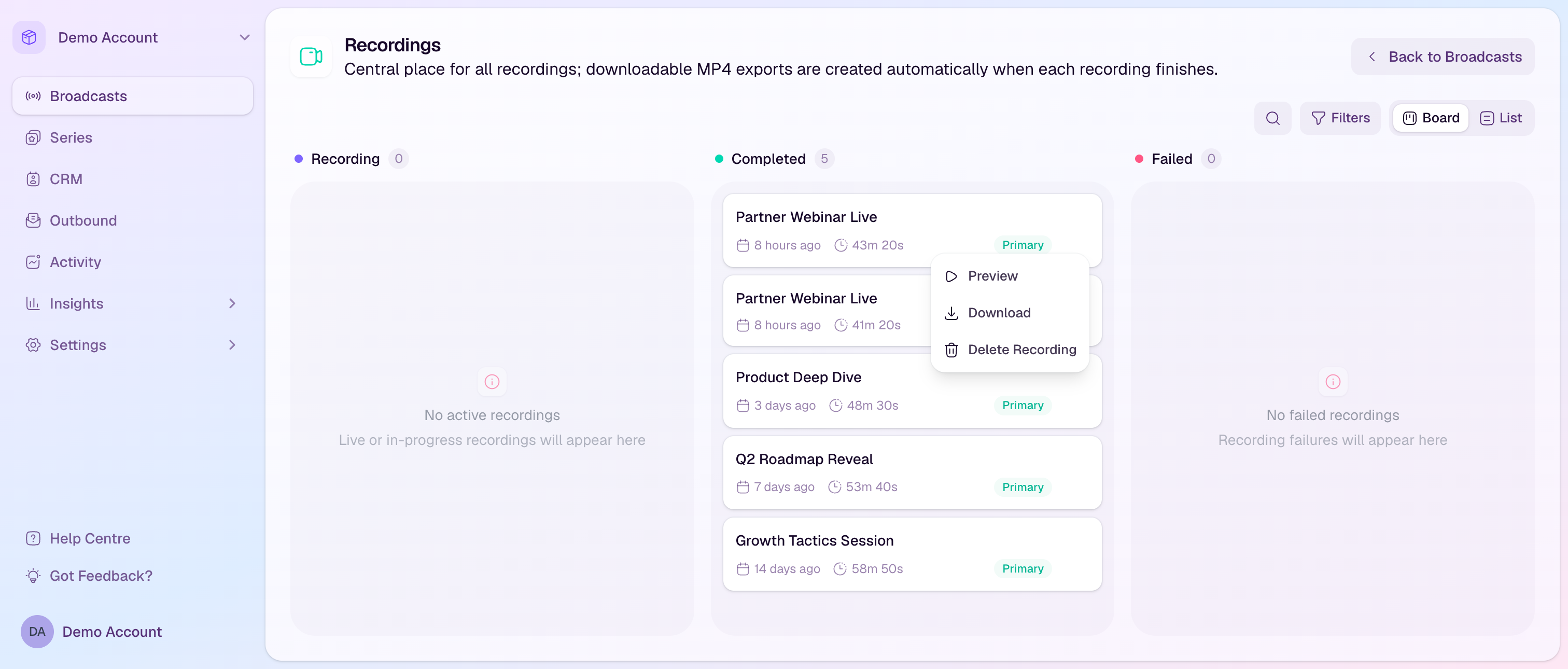
Download a recording
Open the workspace.
Go to Recordings.
Find the completed recording you want to download.
Open the recording actions menu.
Select Download.
If HeyStream needs to prepare the export, wait a few minutes and try again.
Preview before downloading
Use Preview to check that the recording is the right session before downloading it.
Preview is only available for completed recordings.
If a broadcast has several recordings, preview each one before choosing which file to download or set as the Active Replay.
Export states
Preparing means HeyStream is creating or locating the downloadable MP4 export.
Preparing export means the recording is still processing for download.
If an export appears stuck, HeyStream can retry the export preparation.
Longer broadcasts can take longer to prepare for download.
Delete recordings carefully
Deleting a recording permanently removes the recording file.
Deleting the Active Replay removes it from the replay experience.
Download any file you need to keep before deleting it from HeyStream.
Only completed or failed recordings should be deleted; in-progress recordings are protected while they are still recording.
Tips
Use clear broadcast titles so recording cards are easy to identify later.
Download recordings before doing major cleanup on old broadcasts.
If you need a polished edit, download the cloud recording for the full session and use browser local recordings for presenter-side source files when available.