
Cloud recordings and replays
HeyStream creates cloud recordings for your broadcasts so you can review, replay, and download completed sessions without managing a separate recording tool.
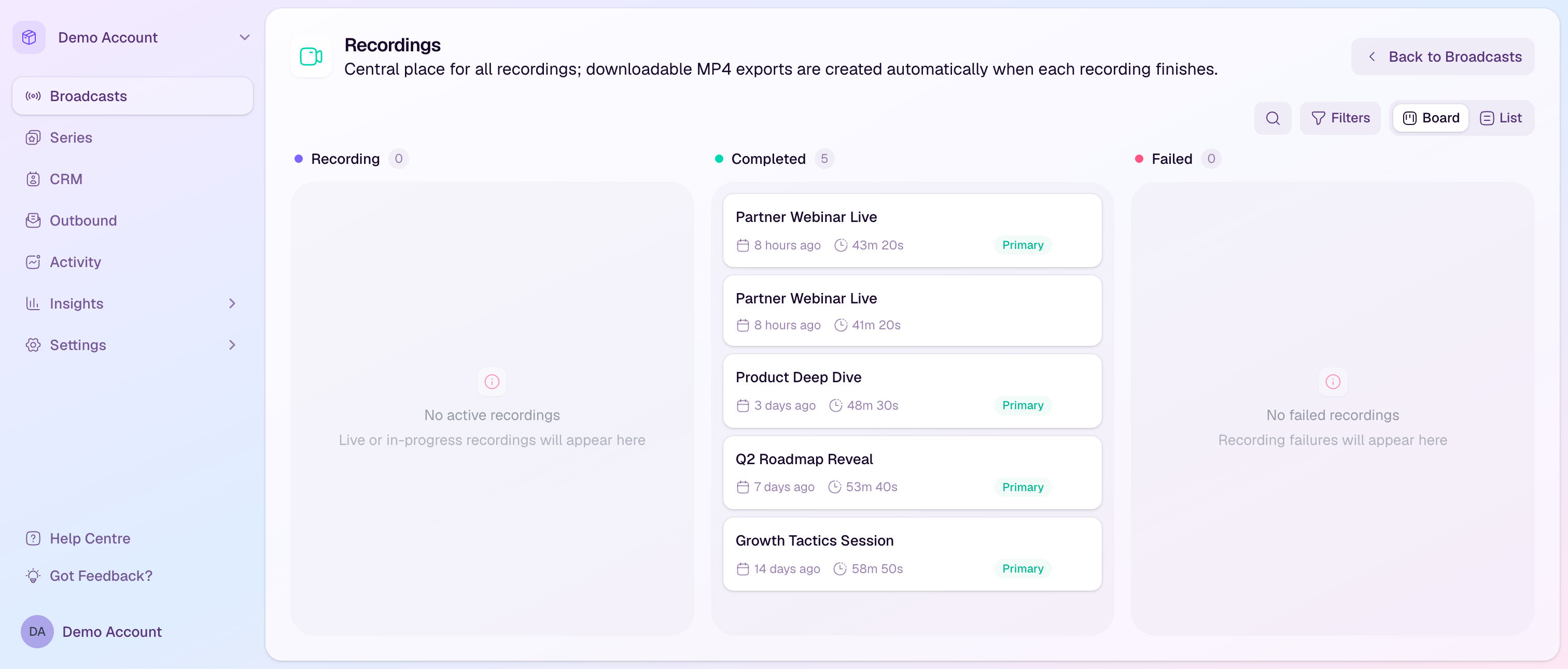
How cloud recordings work
Cloud recordings are created from the broadcast stream.
Recordings appear while they are in progress, then move to Completed when processing is finished.
If a broadcast has more than one completed recording, one recording can be marked as the Active Replay.
Cloud recording and replay quality follows the recording quality available on your plan and broadcast output settings.
Find recordings
Open the workspace.
Go to Recordings from the broadcast area.
Use Board or List view depending on how you prefer to review recordings.
Use search and filters to find recordings by broadcast or date range.
Manage recordings from the studio
Open the broadcast studio and go to the Recordings panel to see cloud recordings for that broadcast.
Use Watch Recording to preview a completed recording.
Use Set as Active Replay when a completed recording should become the replay viewers see.
Use Delete Recording only when you are sure the recording is no longer needed.
Active replays
The Active Replay is the recording used for the replay experience on the watch page.
Choose the cleanest or most complete recording as the Active Replay when a broadcast has several recordings.
Deleting the Active Replay removes it from the replay experience, so choose a replacement first if one is available.
Tips
Check the completed recording before sending replay emails or follow-up messages.
If a broadcast was stopped and resumed quickly, review the final recording to confirm the replay is continuous.
Use the workspace Recordings page when you need to find recordings across several broadcasts.