
Recording troubleshooting
Most recording issues are timing, settings, or processing issues rather than permanent failures. Use this checklist to work out what happened and what to try next.
If a recording is missing
Confirm the broadcast actually went live. Draft or rehearsal activity will not create a finished cloud recording.
Check whether cloud recording was enabled for the broadcast before the session started.
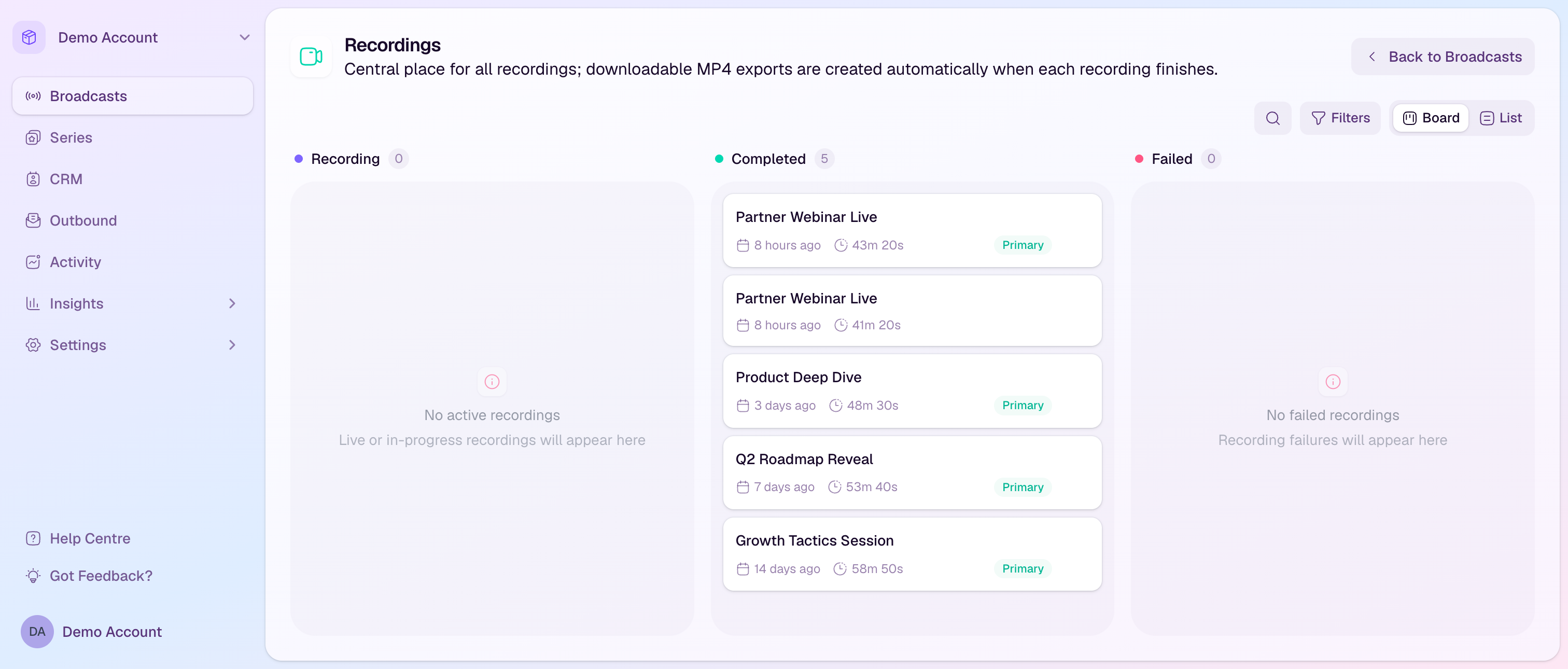
Look in the workspace Recordings page as well as the broadcast studio panel. The Recordings page is the central place for completed exports.
If you used browser local recording, check the presenter device that recorded locally. Local recordings must finish and upload from that browser.
If a recording is still processing
Wait a few minutes after the broadcast ends. Longer sessions can take longer to finalize and export.
If a download says the export is queued or processing, leave it for a few minutes and try again.
Avoid deleting a recording while it is still being prepared unless you are sure you no longer need it.
If recording paused during the broadcast
A pause usually means the stream stopped or lost connection.
Resume streaming as soon as possible. If the session resumes within the supported pause window, HeyStream can continue the same recording.
If the stream remains disconnected for too long, HeyStream may finalize the recording segment that was already captured.
If a local recording did not upload
Keep the presenter studio tab open until the local recording finishes, finalizes, and uploads.
Check the presenter’s connection before closing the browser.
If upload fails, try again from the same device where the local recording was created.
If the replay is not showing
Open the broadcast recordings panel and confirm a completed recording is set as the active replay.
If the active replay was deleted, choose another completed recording and set it as the active replay.
Make sure the watch page or replay access settings allow attendees to view the replay.