
Customize transactional email templates
Transactional email templates control the automatic emails HeyStream sends around registrations, reminders, presenter participation, access links, purchases, and replay follow-up. You can customize the copy while keeping the system-powered event details and merge values intact.
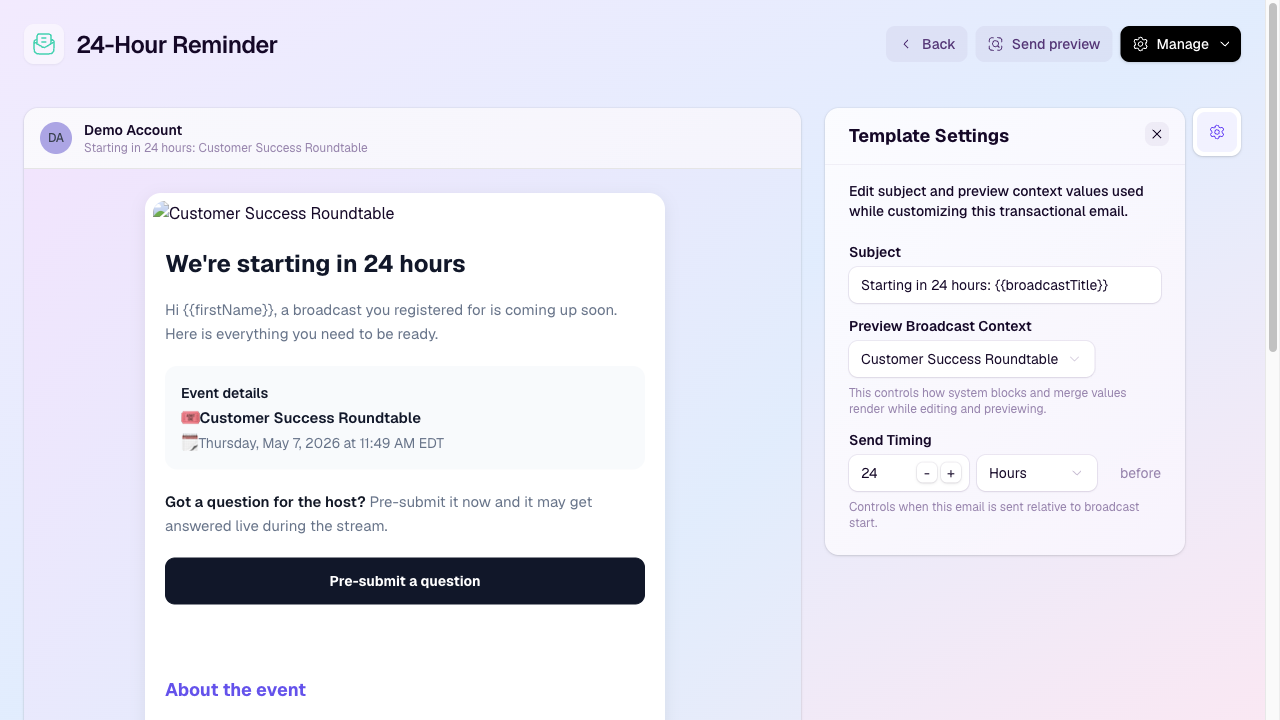
Customize a template
You can prepare email content, but sending a preview or delivering an automatic workspace email requires the workspace owner's account email to be confirmed and their paid plan to be active after the trial. Resuming a template does not bypass these requirements. If an action is blocked, follow Confirm email, View trial, or View billing as shown in HeyStream. If you are a teammate, ask the workspace owner to confirm the owner's email address or resolve the account's billing status.
Open Outbound from the workspace sidebar.
Select the Transactional tab.
Open the actions menu on a template and select Customize.
Edit the subject and body blocks in the editor.
Use Template Settings to choose the preview broadcast context and adjust send timing where the template supports it.
Select Send preview to send yourself a test copy.
Editable and system blocks
Some blocks are editable so you can change the wording, structure, and supporting content. System blocks are generated from broadcast, registration, presenter, or purchase data, and should be kept in place when you want the email to include accurate event details.
Timing controls
Reminder and replay templates can include timing controls, such as sending a reminder a set number of hours before the broadcast starts. Keep timing close to the audience expectation, especially for reminders that affect attendance.
Manage the template
Use Pause when you need to temporarily stop a transactional email from sending.
Use Resume to turn a paused template back on.
Use Reset when you want to remove your customizations and return to the default HeyStream template.
Use Review Update when HeyStream has shipped an updated base template and you want to compare it with your customized version.