
Connect outbound webhooks
Outbound webhooks let HeyStream send registration, attendance, and post-broadcast summary events to a public HTTPS endpoint your team controls.
Use a webhook when you want HeyStream activity to trigger a custom workflow, update an internal system, or pass broadcast data into a connector tool that is not available as a native integration yet.
Before you start
Prepare a public HTTPS endpoint that can receive POST requests from HeyStream.
Make sure your endpoint can read JSON request bodies.
Decide which HeyStream events your workflow needs.
If you plan to verify deliveries, have someone technical available to add signature verification to your endpoint.
Add a webhook
Open Settings in your HeyStream workspace.
Select Integrations.
Select Add Integration.
Choose Webhooks & Connectors.
Select Webhook.
Enter the public HTTPS endpoint that should receive HeyStream events.
Choose the events HeyStream should send.
Copy the signing secret if your endpoint will verify webhook signatures.
Select Save and Close.
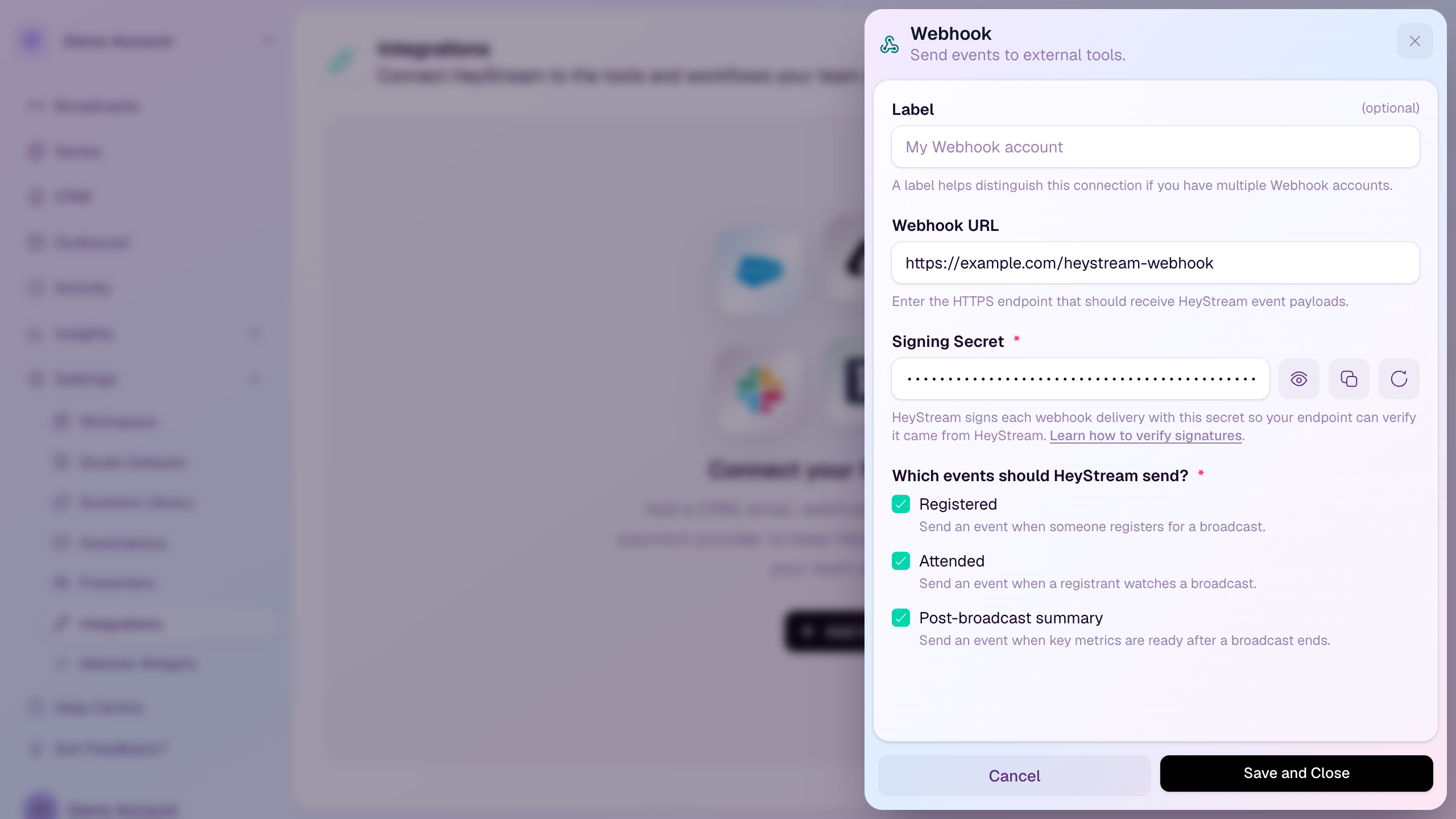
Choose webhook events
You can choose one or more events:
Registered: sent when someone registers for a broadcast.
Attended: sent when a registrant watches a broadcast.
Post-broadcast summary: sent when key metrics are ready after a broadcast ends.
Only select the events your receiving system needs. You can edit the webhook later if your workflow changes.
Verify webhook signatures
HeyStream signs every outbound webhook delivery with the signing secret shown in the webhook setup drawer.
Signature verification is optional, but we recommend it for production endpoints because it helps your endpoint confirm that the event came from HeyStream and that the request body was not changed in transit.
For implementation details, see Verify HeyStream webhook signatures.
Edit or rotate a webhook secret
Open the connected webhook from Settings > Integrations when you need to change the endpoint, change selected events, copy the signing secret, or regenerate the signing secret.
If you regenerate the signing secret, update your receiving endpoint before or immediately after saving the change. Future webhook deliveries use the new secret.
Test and troubleshoot
Use the integration test option to confirm your endpoint can receive a sample delivery before relying on the webhook for a live broadcast.
If deliveries are not arriving:
Confirm the webhook endpoint is still live and reachable over public HTTPS.
Check that your endpoint accepts POST requests.
Check your server logs for validation, authentication, or parsing errors.
Confirm the webhook is connected and the relevant event is selected in HeyStream.
If signature verification fails, make sure your endpoint verifies the raw request body and the current signing secret.
Good to know
Webhook deliveries are tied to the workspace connection you create in Integrations.
HeyStream sends JSON payloads to the endpoint you provide.
Webhook URLs cannot use localhost, private network addresses, embedded URL credentials, or redirects to private destinations.
Keep signing secrets private and do not expose them in client-side code, public repositories, logs, or shared screenshots.