
Audio and video issues
Use this guide when a host, presenter, or guest cannot select a camera or microphone, cannot hear the studio, sounds distorted, or has poor video quality.
Start with the basics
Use a current version of Chrome, Edge, or another modern Chromium-based browser.
Close other video apps that may already be using the camera or microphone.
Connect headphones before joining the studio if you are presenting from a room with speakers.
Reload the studio after changing browser, operating-system, camera, or microphone permissions.
If the issue started after switching devices, leave the studio and rejoin with the correct device selected.
Camera or microphone is missing
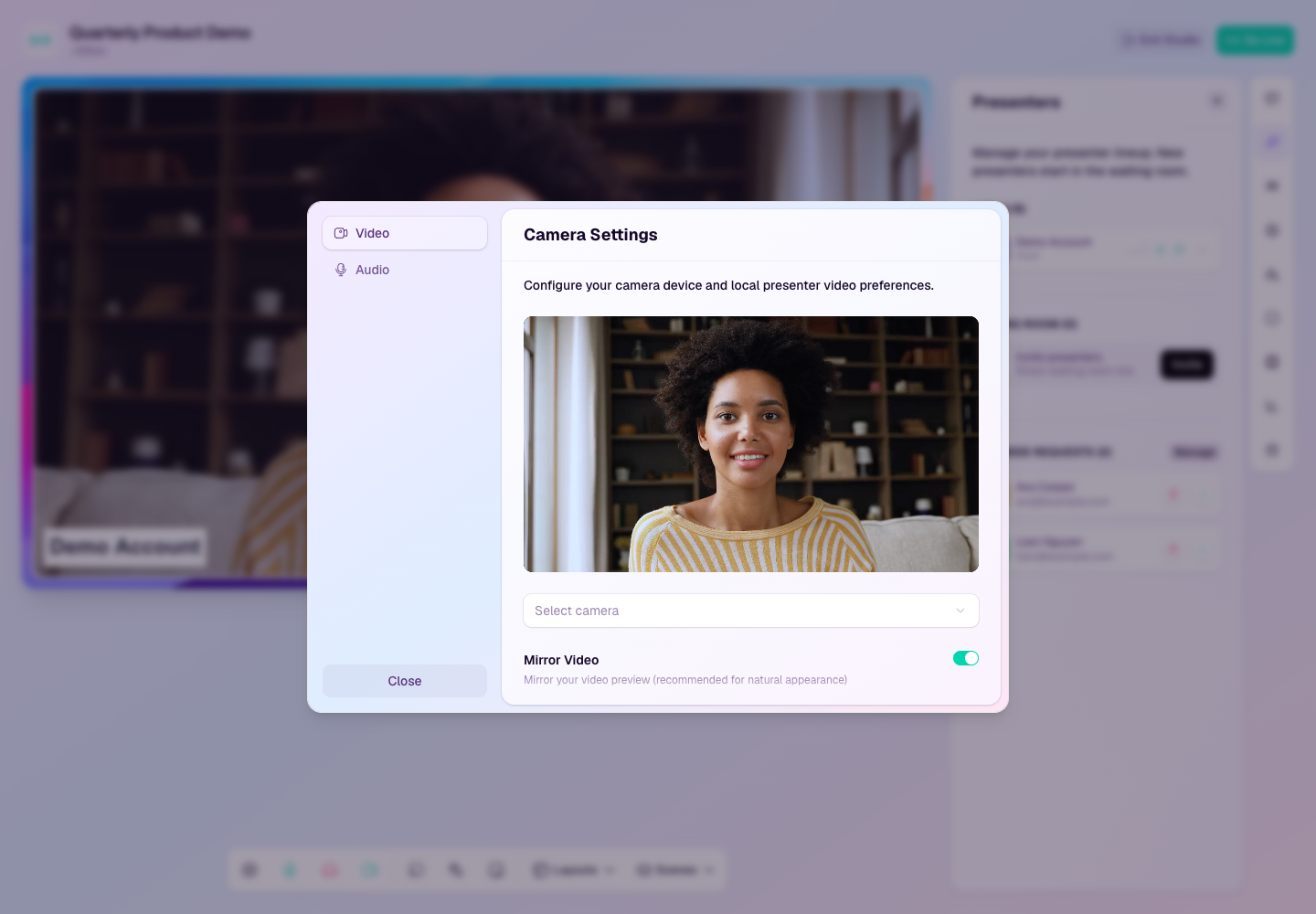
Open the studio device settings and make sure the intended camera, microphone, and speaker are selected.
Check browser permissions for app.heystream.com and allow camera and microphone access.
Check your operating-system privacy settings and allow the browser to use the camera and microphone.
Unplug and reconnect external webcams, microphones, capture cards, or audio interfaces.
If a virtual camera is selected, test with a physical camera to rule out the virtual-camera app.
Echo, low volume, or distorted audio
Ask every presenter to use headphones, especially if they are in the same room as another presenter.
Make sure only one studio tab is open for each presenter.
Select the dedicated microphone rather than a monitor, webcam, or headset output device.
Mute presenters who are not speaking and ask them to unmute when they are ready.
Lower microphone gain in the operating system or audio interface if the audio sounds clipped or harsh.
Video is frozen or low quality
Move to a stronger network connection, preferably wired ethernet or a stable Wi-Fi signal.
Close bandwidth-heavy apps such as cloud backup, file sync, or other livestreaming tools.
Turn off unnecessary screen shares, virtual backgrounds, or camera effects.
Switch to a lower-resolution camera mode if the presenter device is under heavy load.
If only one presenter is affected, ask that presenter to rejoin from another browser or device.
When to contact support
Contact support if the same issue happens across multiple browsers or devices.
Include the broadcast link, affected presenter name, browser, operating system, device names, and the time the issue occurred.
If the broadcast is live, keep the stream running where possible and send details from another device or team member.