
Camera, microphone, and speaker settings
Every presenter should check camera, microphone, and speaker settings before the broadcast starts. Hosts should also ask presenters to do a short test in the waiting room before bringing them live.
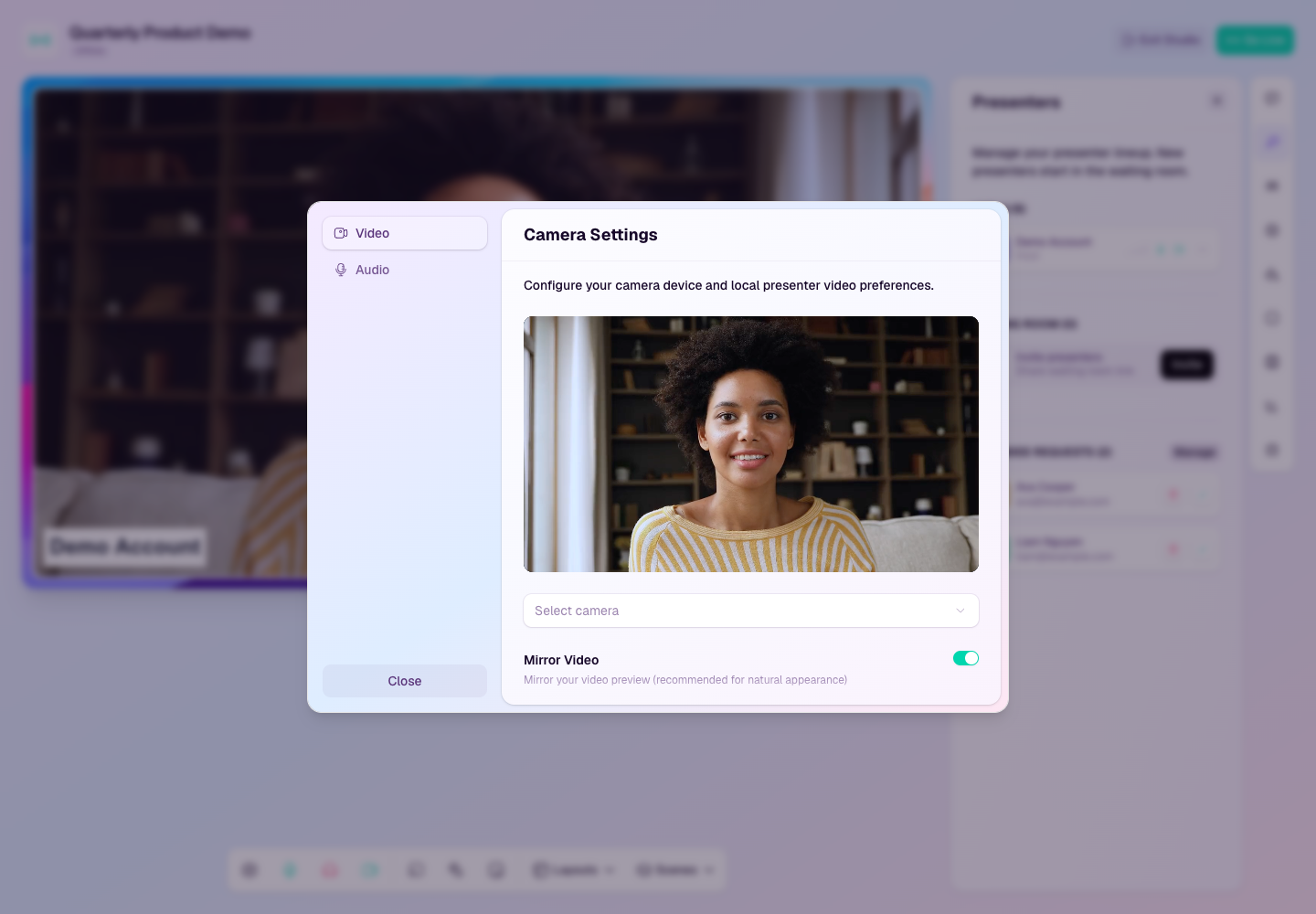
Open device settings
Join the studio.
Select the settings control in the studio toolbar.
Use the Video tab to choose your camera and check your preview.
Use the Audio tab to choose your microphone and speaker device.
Close the dialog when your preview and audio devices look correct.
Use the toolbar controls
Microphone toggles whether your mic is live in the studio.
Speaker monitor lets you hear studio audio when you need local monitoring.
Camera toggles whether your camera feed is available to the studio.
Settings opens the full camera and audio configuration dialog.
Recommended checks
Use headphones when possible to avoid echo.
Close conferencing apps that might already be using your camera or microphone.
Confirm the selected device name matches the camera or microphone you intend to use.
Check lighting and framing before the host brings you live.
Run this check again if you unplug a headset, dock, microphone, or camera during rehearsal.
If a device is missing
Refresh the studio after plugging the device in.
Allow camera and microphone permissions in the browser.
Check your operating system privacy settings.
Try another browser if the device is available elsewhere but not shown in HeyStream.