
Invite team members and manage workspace access
HeyStream team access lets you invite teammates to your account and choose exactly which workspaces they can use.
Use it when someone needs to help with broadcasts, billing, reports, contacts, integrations, or presenter operations without sharing an owner account.
Who can manage team access
You can manage team members when you are the workspace owner or when you have permission to manage team members for at least one workspace.
Open the user menu in HeyStream and select Team. If you do not see Team, your account does not have team-management permission for the current workspace set.
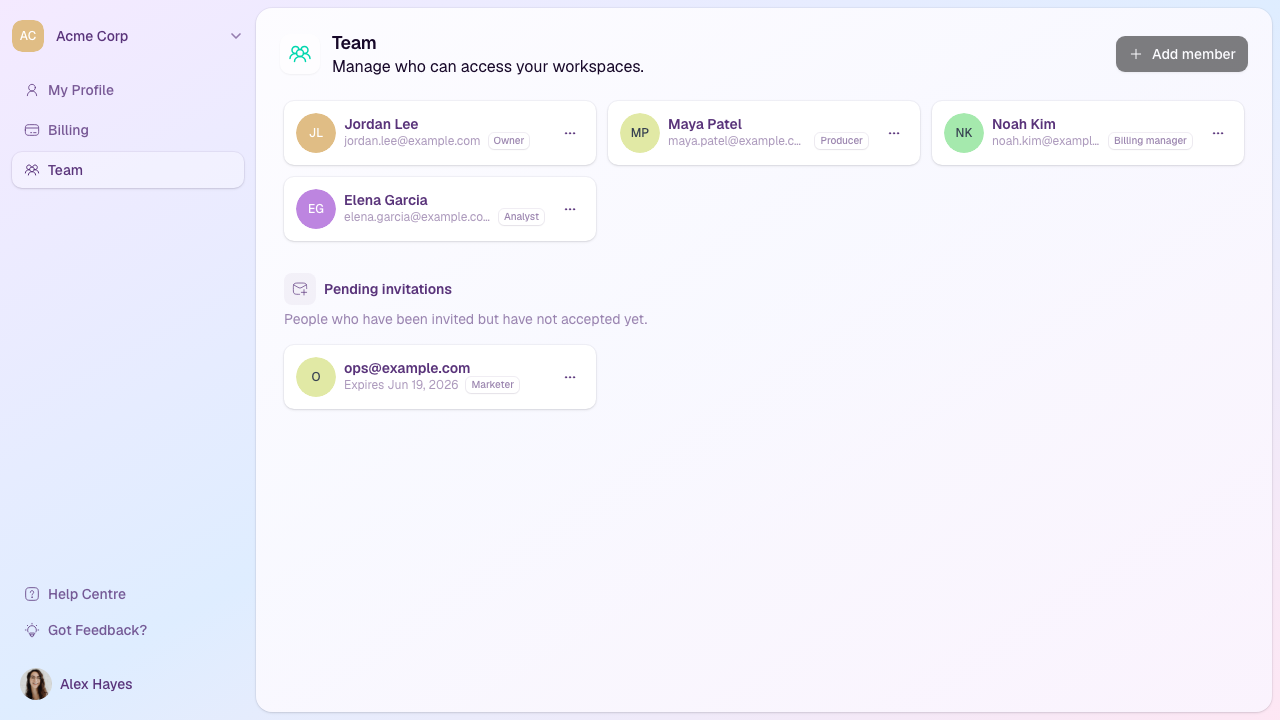
Invite a team member
Open the user menu in the bottom-left of HeyStream.
Select Team.
Select Add member.
Enter the teammate's email address.
Choose the role that best matches their work.
Review or adjust the permissions.
Choose the workspaces they should be able to access.
Turn on Future workspace access if this person should automatically get the same access to workspaces you create later.
Select Add member.
HeyStream sends an invitation email. The invited person must accept the invitation using the email address you invited.
Choose the right role
Role presets are the fastest way to give someone a sensible starting point. You can still adjust individual permissions after choosing a role.
Admin: manages settings, team access, broadcasts, and most workspace areas. Admins do not receive owner-only access or billing access by default.
Billing manager: manages billing without access to broadcasts, contacts, reports, or studio tools.
Producer: creates, edits, runs, and manages broadcasts and series.
Marketer: manages broadcasts, series, outbound messages, contacts, registrations, presenters, and reports.
Analyst: views reports, activity, recordings, contacts, registrations, broadcasts, and series.
Presenter: enters the studio and accesses presenter materials.
Member: views basic workspace activity and broadcast information.
Choose Custom when a teammate needs a more specific combination of permissions.
Adjust permissions
Use the Permissions tab when a role preset is close but not exact.
Permissions are grouped by area:
Workspace: view the workspace, update settings, manage team members, or manage billing.
Broadcasts and studio: view, create, edit, delete, or run broadcasts; operate the studio; view or manage series.
Audience and outbound: view or send outbound messages, manage contacts, view or manage registrations, and export registration data.
Assets and reporting: view insights, activity, recordings, files, and presenters; download recordings; manage files or presenters.
Connections: manage integrations, streaming destinations, and embeds.
Changing a permission switches the role to Custom unless the selected permissions match another preset exactly.
Limit access to specific workspaces
Use the Workspaces tab to choose where the member should have access.
This is useful when one teammate should help with one brand, client, region, or event program but should not see every workspace in the account.
You must choose at least one workspace before sending an invitation or saving access changes.
Manage pending invitations
Pending invitations appear on the Team page until they are accepted, canceled, or expire.
From the invitation menu, you can:
Resend invitation when the teammate cannot find the email.
Cancel invitation when the person no longer needs access or the email address was wrong.
Invitations expire after seven days. If an invite has expired, send a new invitation.
Change or remove access
Open the menu beside a team member and choose Manage access to update their role, permissions, workspace access, or future workspace access.
Open the same menu and choose Remove member when someone should no longer have access.
Workspace owners cannot be changed or removed from the Team page. Transfer workspace ownership first if someone else needs to become the owner.
Billing access
Use the Billing manager role, or add the Manage billing permission to a custom role, when someone should handle subscription and billing tasks without broader workspace access.
For more detail on subscription management, see Billing, subscriptions, and trials.
Troubleshooting
The teammate cannot accept the invitation
Ask them to sign in or create an account using the same email address you invited. If they are signed in as a different email, HeyStream will ask them to use the invited address.
The teammate cannot see a workspace
Open Team, choose Manage access for that member, and check the Workspaces tab. Make sure the workspace is selected.
The teammate cannot see billing, settings, integrations, or another area
Check their Permissions tab. They may need a different role or a specific permission for that area.
The Team menu is missing
You need team-management permission for at least one workspace. Ask the workspace owner or an admin with team-management access to update your permissions.