
Layouts, scenes, branding, and on-screen content
Layouts, scenes, branding, and on-screen content control what viewers see during a live broadcast. Set the visual basics before going live, then switch layouts or show scenes as the session changes.
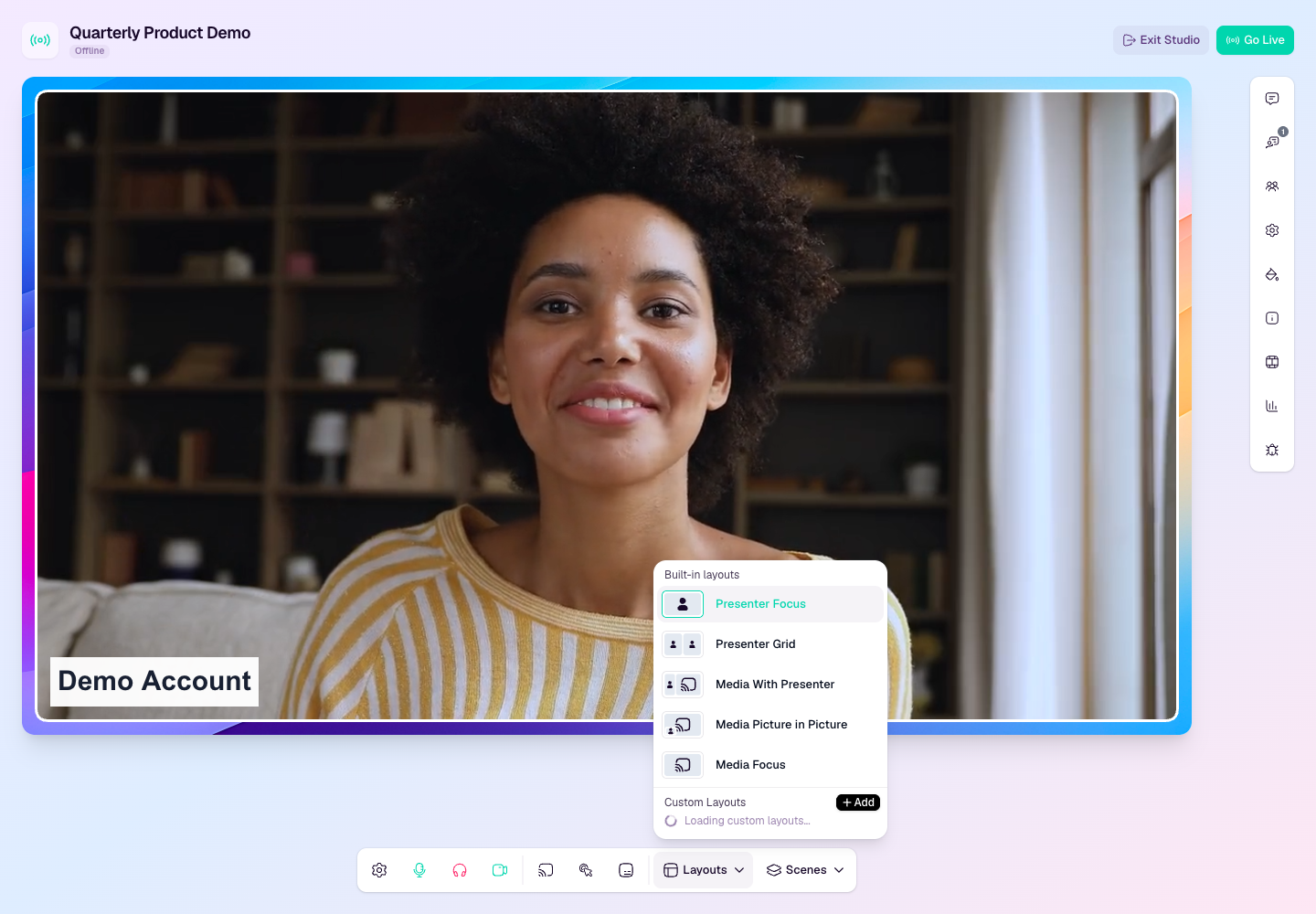
Use layouts
Layouts define how live presenters and shared media are arranged on the stage.
Presenter Focus is useful when one speaker should fill the stream.
Presenter Grid is useful for panels and group discussions.
Media With Presenter, Media Picture in Picture, and Media Focus are useful when screen share, slides, or files are part of the segment.
Custom layouts let hosts position presenter webcams and media for a repeatable production style.
Use scenes
Scenes overlay content on top of the active layout.
Use scenes for lower thirds, segment labels, announcements, or branded overlays.
Create scenes before the broadcast where possible, then activate them during the live show.
Stop a scene when it should no longer appear over the stream.
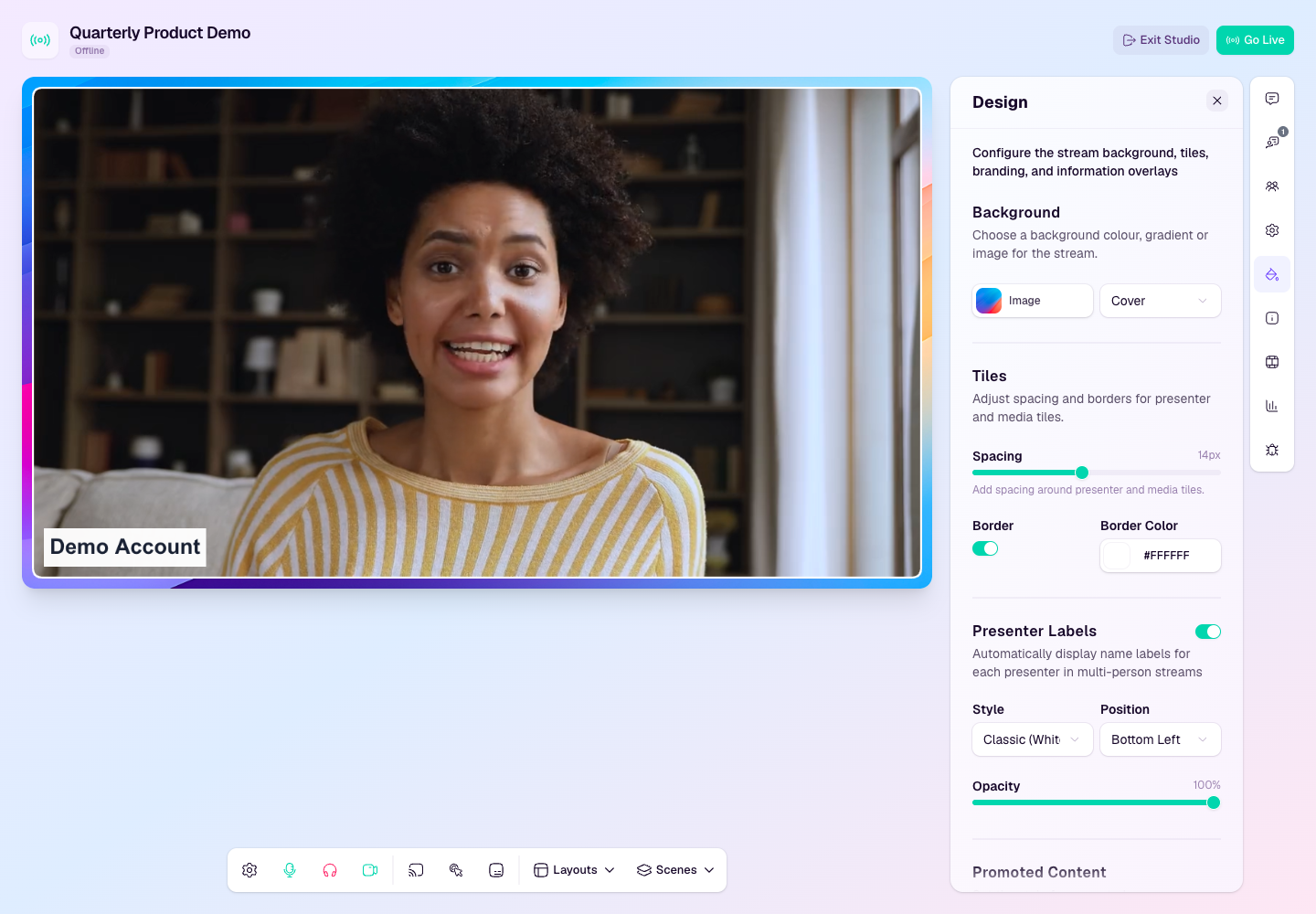
Set branding and design
Use the Design panel to configure background color or imagery, tile spacing, tile borders, and presenter labels.
Use workspace or broadcast defaults to keep repeated broadcasts visually consistent.
Check the stage preview after making design changes, especially if you use a detailed background image.
Keep labels readable against your chosen background and presenter tiles.
Use on-screen content
On-screen content is best for timely moments such as promoted questions, poll results, highlighted comments, or reusable graphic items.
Prepare reusable content before the broadcast if you know the moments you want to show.
Promote live content only when it adds context for viewers.
Remove promoted content once the moment has passed so the stream does not feel cluttered.