
Connect Stripe for payment CTAs
Connect Stripe when you want viewers to pay through a HeyStream call to action during a live broadcast or replay. Payments are collected directly in your connected Stripe account.
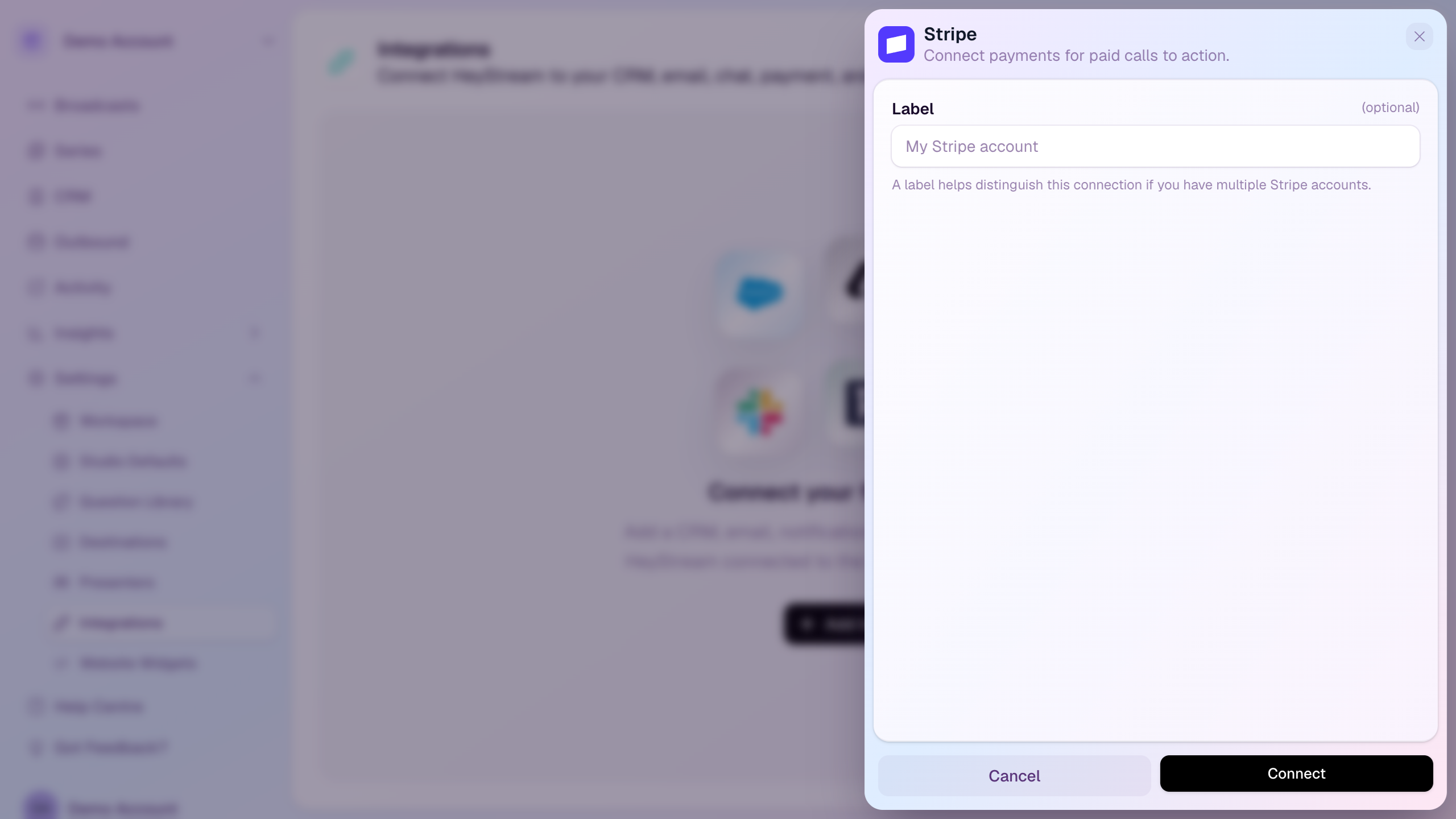
Connect Stripe
Open Settings from the workspace sidebar.
Select Integrations.
Select Add Integration.
Choose Payments.
Select Stripe.
Add an optional label if you connect more than one payment account.
Select Connect, then sign in to Stripe to approve access.
Use Stripe in a CTA
Open the CTA library from the broadcast studio.
Create or edit a CTA.
Set the action to Collect payment.
Choose the connected Stripe account as the payment provider.
Enter the payment label, amount, and currency.
Save the CTA and show it live or make it available on replay.
Important notes
Payment CTAs require Scale access. In-stream payment CTAs are included on Scale.
Stripe processing fees apply to payments. HeyStream does not add a transaction fee.
A payment CTA must use an active payment provider connection before it can be saved.
Viewers complete payment through a Stripe-powered payment form, and HeyStream records the purchase state for the CTA.
If Stripe is disconnected or paused, new payment CTAs cannot use that connection until it is active again.