
Join the studio
The studio is where hosts and presenters prepare before going live. Join early to confirm your name, role, camera, microphone, screen sharing, and presenter setup before the broadcast starts.
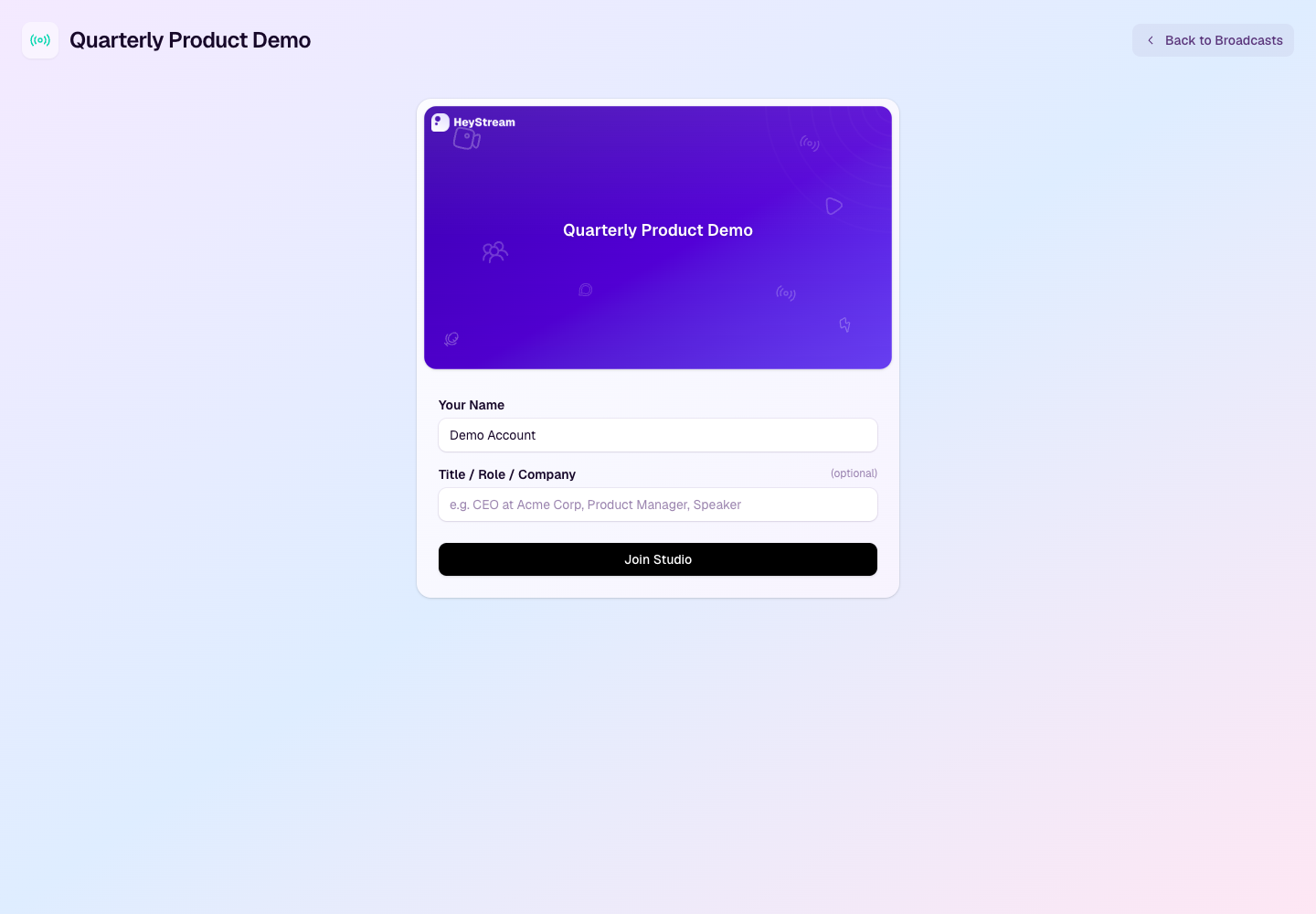
Join from your workspace
Go to Broadcasts in your workspace.
Open the broadcast you are producing.
Select Studio or Join Studio.
Confirm your display name and optional title, role, or company.
Select Join Studio.
After entering, check your camera, microphone, and speaker settings before going live.
Join from a presenter invite
Presenters can join from a personal presenter invite link sent by the broadcast host.
The invite link opens a secure join flow and then sends the presenter into the correct studio.
If the invite link fails, ask the host to resend the presenter invite instead of using an attendee watch link.
Before you join
Use a modern browser with camera and microphone permissions enabled.
Close other apps that may be using your camera or microphone.
Join early enough to test audio, video, slides, and screen sharing.
Use the exact broadcast studio link for the event you are producing.