
Billing, subscriptions, and trials
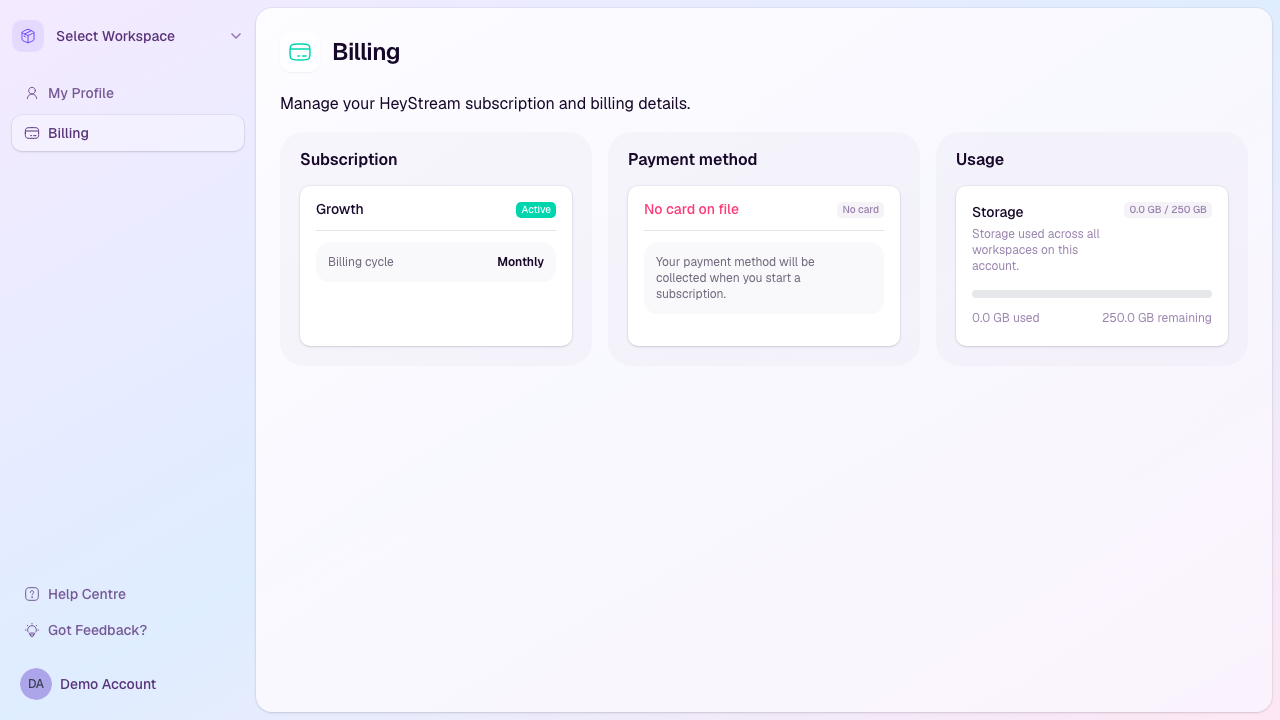
The Billing page shows your subscription status, payment method, and storage usage for the account. Use it to understand what plan is active, what billing actions are available, and whether your current usage affects plan changes.
Open billing
Sign in to HeyStream.
Open the account area from the sidebar.
Select Billing.
Read your subscription status
The Subscription card shows your current plan and billing status. Depending on your account state, it may show an active subscription, a trial, a missing subscription, or a subscription scheduled to end.
If your account is billed through Stripe, the Subscription card also shows the current billing cycle, such as monthly or yearly.
If plan selection is available, the Billing page can show plan options and a feature comparison so you can choose the right plan before subscribing.
Manage payment methods
The Payment method card shows whether a card is on file. If your account has a Stripe customer record, you can use the billing portal action to add or update your card. Payment details are handled through the billing portal rather than typed directly into HeyStream.
Change plan or billing cycle
If your account has an active or trialing Stripe-managed subscription, open the menu on the Subscription card and choose Change plan.
You can choose a plan tier and billing cycle in one place. Before you confirm, HeyStream checks the selected plan against your account and shows the monthly price change, included feature changes, and any limits that would change.
If you are moving to a lower plan, HeyStream may ask you to resolve plan limits before the change can be applied. For example, you may need to reduce account storage or workspace usage before switching to a plan with lower limits. Review the items under Resolve before changing plan, make the required changes, and then return to Billing.
If the current plan is selected, choose a different plan or billing cycle before continuing. If you do not see Change plan, use Manage to open the billing portal or contact support so the team can check the account state.
For more detail on what each plan includes, see Plan limits: attendees, duration, storage, destinations, presenters.
Check storage usage
The Usage card shows storage used across all workspaces on the account. Storage includes recordings and uploaded files. The storage allowance depends on your plan: Launch includes 50 GB, Growth includes 250 GB, and Scale includes 1 TB.
Trials
The workspace owner's account email must be confirmed, their trial must have ended, and their paid plan must be active before you can import contacts, create or use API keys, or send workspace emails. Choosing a paid plan while the trial is still running does not unlock these actions. If an action is blocked, follow Confirm email, View trial, or View billing as shown in HeyStream. If you are a teammate, ask the workspace owner to confirm the owner's email address or resolve the account's billing status.
HeyStream trials last 7 days. During a trial, your account has access to the plan selected for the trial, subject to the restrictions below. If a payment method is required before the trial ends, the Billing page will show that prompt.
Cancel or restore a subscription
If subscription management is available for your account, use the menu in the Subscription card to cancel or restore the subscription. Cancelling may schedule the subscription to end at the close of the current billing period rather than removing access immediately.
If billing access is blocked
If the account does not have active billing access, HeyStream may redirect you to Billing before other account pages. Choose a plan, start a trial, or resolve the payment issue shown on the Billing page to regain access.