
Invite and manage presenters
The Presenters panel is where hosts manage who is invited, who is waiting, who is currently live, and which live presenters fill the studio layout slots. Use it before the broadcast to confirm the lineup, and keep it open during rehearsal when presenters are joining at different times.
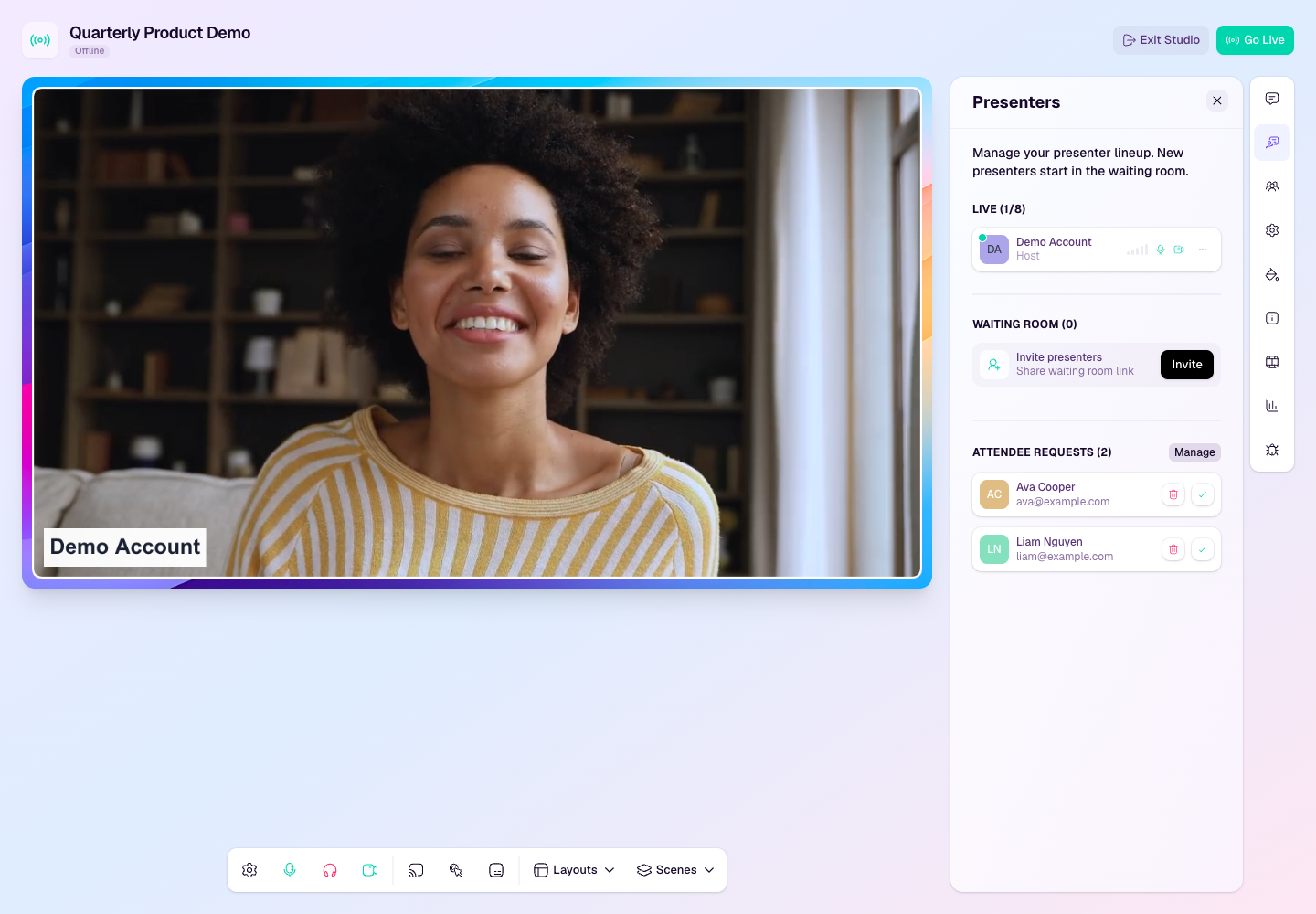
Invite presenters
Open the broadcast studio as a host, co-host, organizer, or staff user.
Open the Presenters panel from the right side rail.
Use Invite presenters to copy or share the presenter waiting room link.
Send personal presenter invites from the broadcast setup when you want each presenter to receive their own join link and reminder emails.
Ask presenters to join early so you can check names, titles, camera, microphone, and screen sharing before the live start.
Manage the lineup
Live presenters are visible on the stage and can be included in the outgoing stream layout.
Waiting room presenters are connected to the studio but are not on screen yet.
Hosts can move presenters between Live and Waiting Room, update presenter details, change roles, start private threads, or remove someone from the broadcast.
Offline invited presenters remain listed so the host can see who has not joined yet.
Hosts can generate a personal studio join URL from an offline presenter card when that presenter needs their own link again.
Attendee requests, when enabled on the workspace plan, appear below the presenter lineup for approval or rejection.
Control presenter order
The order of live presenter cards controls the webcam slots used by each layout. Drag live presenters up or down in the Presenters panel to decide who fills slot 1, slot 2, and the remaining visible positions.
Offline presenters can keep an assigned slot position, but HeyStream skips them until they join. When they come online, they return to the ordered lineup without changing the rest of the presenter order.
For more detail about roles, waiting room behavior, and slot order, see Presenter roles, waiting room, and on-screen control.
When to use each invite type
Use personal presenter invites for scheduled speakers who should receive reminder emails and a named join link.
Use the waiting room link for last-minute guests, producers, or people joining during rehearsal.
Use attendee requests when viewers need to ask to join the broadcast from the watch page.
Good practice
Keep at least one host in the studio whenever presenters are joining.
Confirm each presenter has the right display name and title before going live.
Put presenters in the live order you want before switching layouts or starting a multi-speaker segment.
Move presenters back to the waiting room when they are no longer part of the live segment.
Do not share presenter links publicly; attendee watch links and presenter studio links are different.