
Duplicate or reuse broadcast setup
Duplicating a broadcast helps you reuse a proven setup without rebuilding the same title, description, presenters, registration settings, and series assignment from scratch.
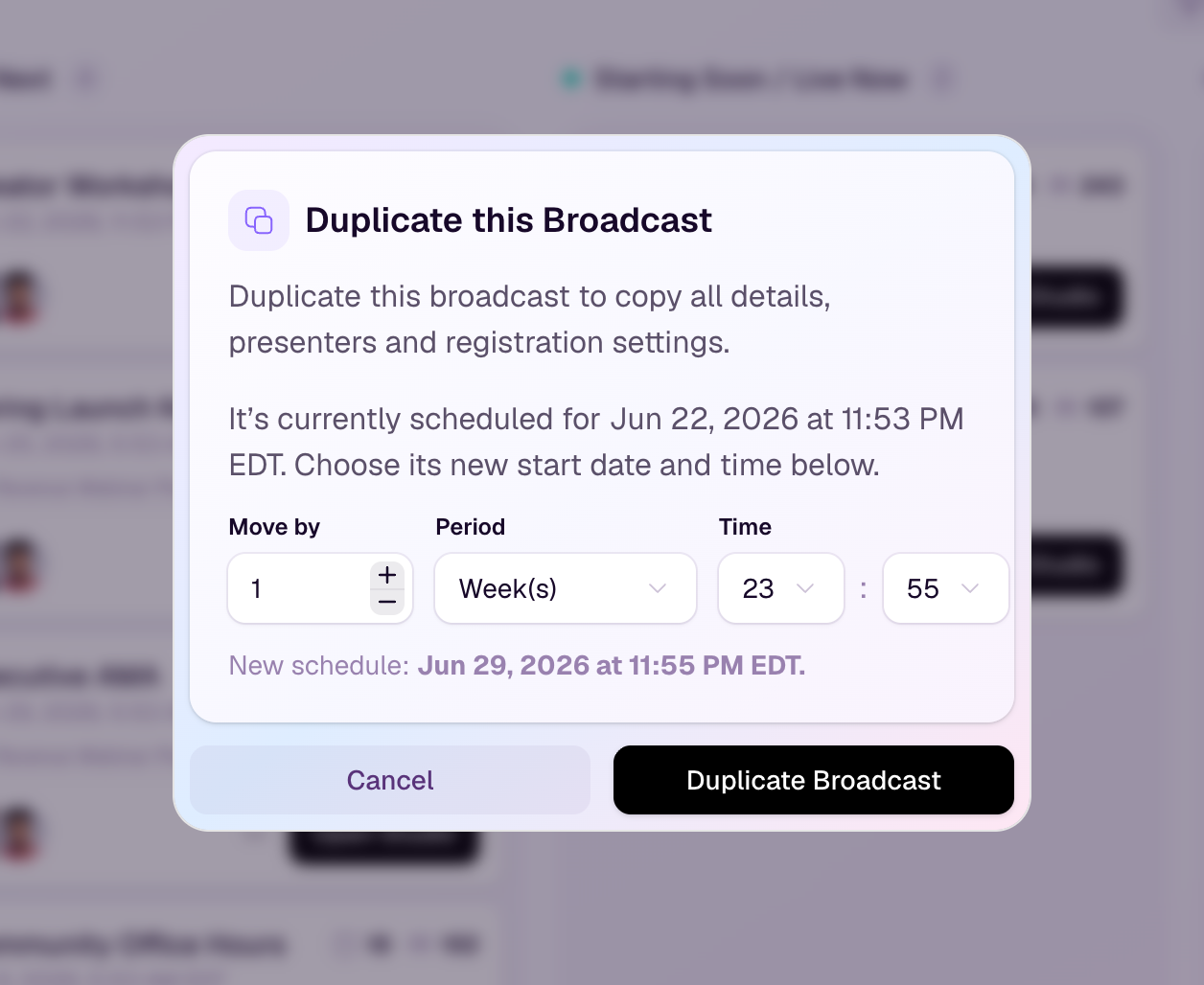
Duplicate a broadcast
Go to Broadcasts in your workspace.
Open the actions menu for the broadcast you want to reuse.
Choose Duplicate Broadcast.
If the original broadcast is scheduled, choose how far forward the new broadcast date should move and set the new start time.
Check the New schedule preview to confirm the copied broadcast will start at the right date and time.
Select Duplicate Broadcast to create the copy.
What gets copied
The broadcast title and description.
Presenters assigned to the broadcast.
Registration settings and custom registration fields.
The series assignment, when the original broadcast belongs to a series.
The timezone and estimated duration where those are set on the original broadcast.
What to review after duplicating
Update the title if the new broadcast needs a different name.
Confirm the date, time, timezone, and estimated duration.
Review presenters, production settings, and any event-specific details before sharing the new links.
Remember that audience activity, registrations, recordings, chat, Q&A, and analytics are not reused from the original broadcast.