
Share your screen, slides, demos, and media
Use the Media options control when you want to show a screen, product demo, slides, or a file during a broadcast. Shared media can then be combined with presenter video using the layout controls.
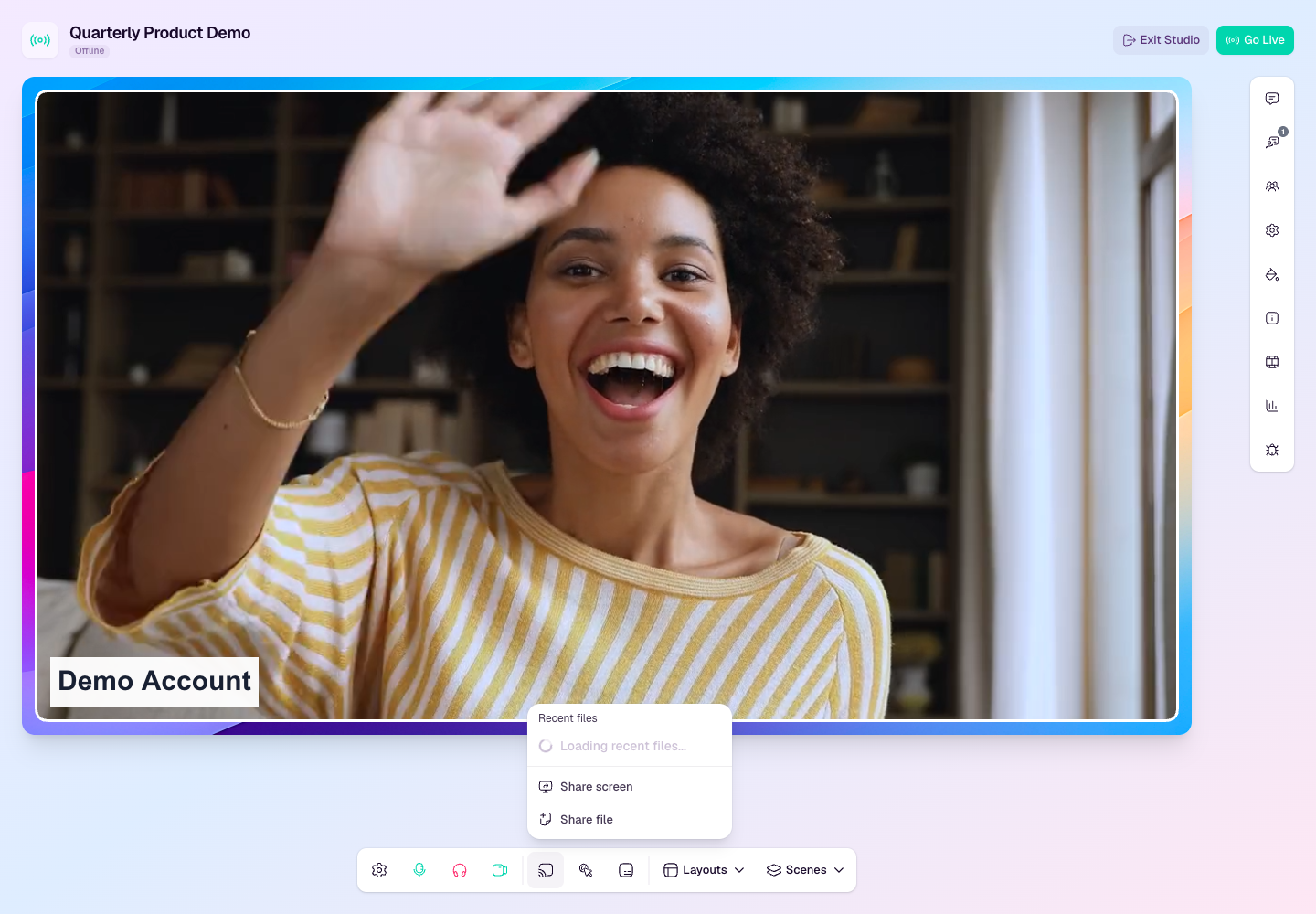
Share your screen
Join the studio from a browser that supports screen sharing.
Select Media options in the studio toolbar.
Choose Share screen.
Pick the window, tab, or full screen you want to share from your browser prompt.
Confirm the shared screen appears in the studio preview before going live or changing layouts.
Share slides or files
Select Media options.
Choose Share file.
Pick the deck, PDF, video, or supported media file you want to use.
Wait for the file to prepare before switching to a media-focused layout.
Use the layout menu to place the media beside or above presenter video.
During the broadcast
Use a media layout when the shared content should be the focus.
Use picture-in-picture when the presenter should remain visible beside the media.
Stop sharing when the segment is finished so the next layout is clean.
Keep private browser tabs, notifications, and desktop windows closed before sharing a full screen.
If sharing does not work
Check browser screen-sharing permissions.
Use a desktop browser rather than a mobile browser for screen sharing.
Try sharing a single tab or window if full-screen sharing is blocked.
Reload the studio if a file upload or shared media preview does not finish preparing.