
Manage attendee responses
Use attendee responses to review who registered, what they answered on your registration forms, and whether they attended. The Attendee Responses page works across your whole workspace, so you can review all broadcasts together or filter down to one broadcast.
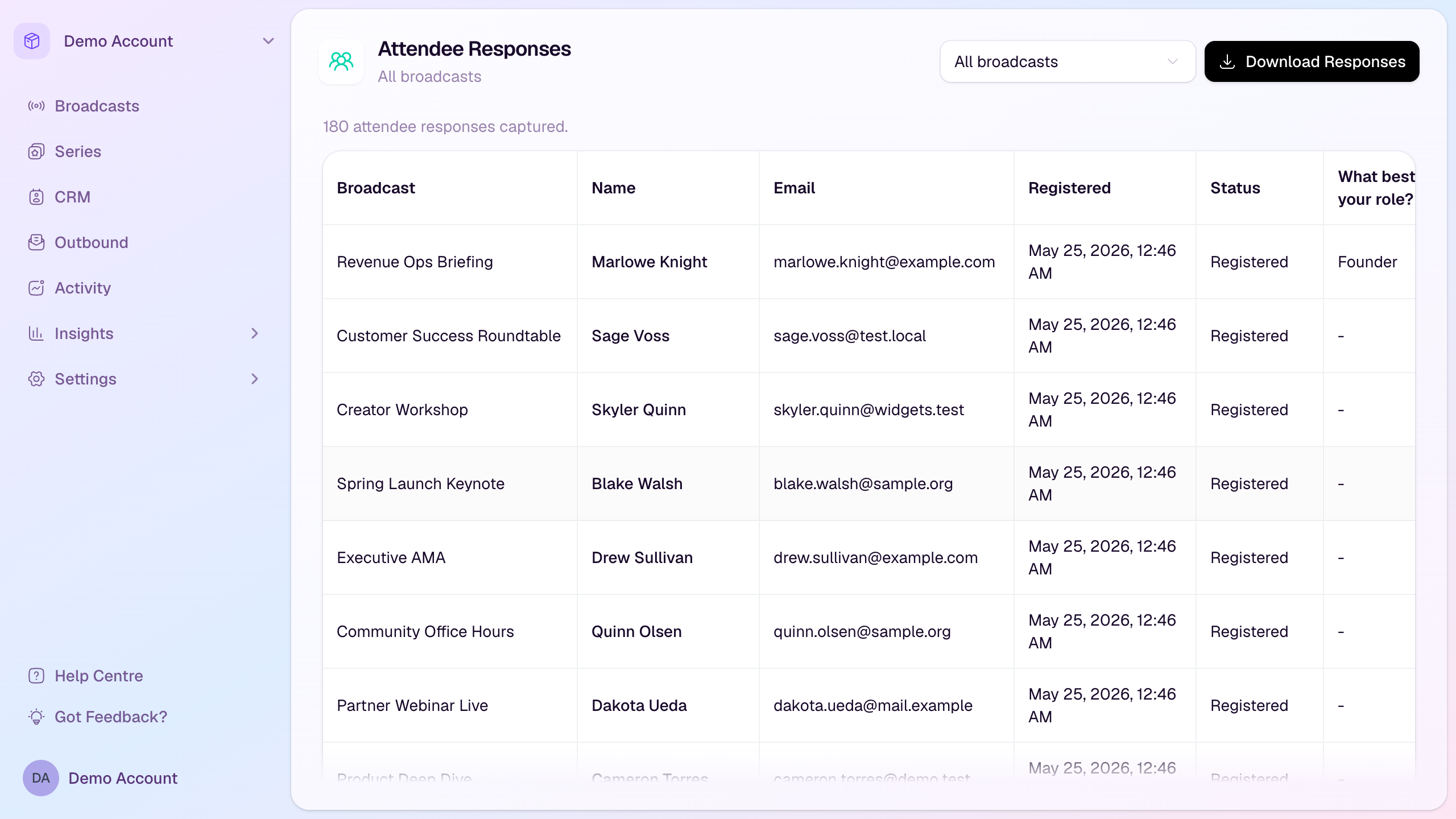
Open attendee responses
Go to Broadcasts in your workspace.
Find the broadcast you want to review.
Open the broadcast actions menu and choose Attendee Responses.
The Attendee Responses page opens with that broadcast selected. Use the broadcast filter to switch to another broadcast or choose All broadcasts to review responses across the workspace.
Select Download Responses to export the current table as a CSV file.
Other places to open it
From Audience Acquisition insights, select View all responses in the Registration Questions section to move from summary charts into attendee-level answers.
From broadcast-level links in the dashboard or studio, HeyStream opens the same workspace page with the relevant broadcast already selected.
What appears in the table
Broadcast: the broadcast each response belongs to. This is especially useful when viewing all broadcasts together.
Standard attendee details: name, email, registration time, and attendee status.
Custom question columns: one column for each registration question captured for the selected broadcasts.
Export-ready data: the CSV export follows the same broadcast filter as the page. All-broadcast exports include the Broadcast column so you can sort or segment responses outside HeyStream.
Good to know
If no one has registered yet, the page shows an empty response state.
Question columns only appear when the selected broadcast or series has custom registration questions.
Use responses before and after a broadcast to plan reminders, segment follow-up, and identify high-intent attendees.